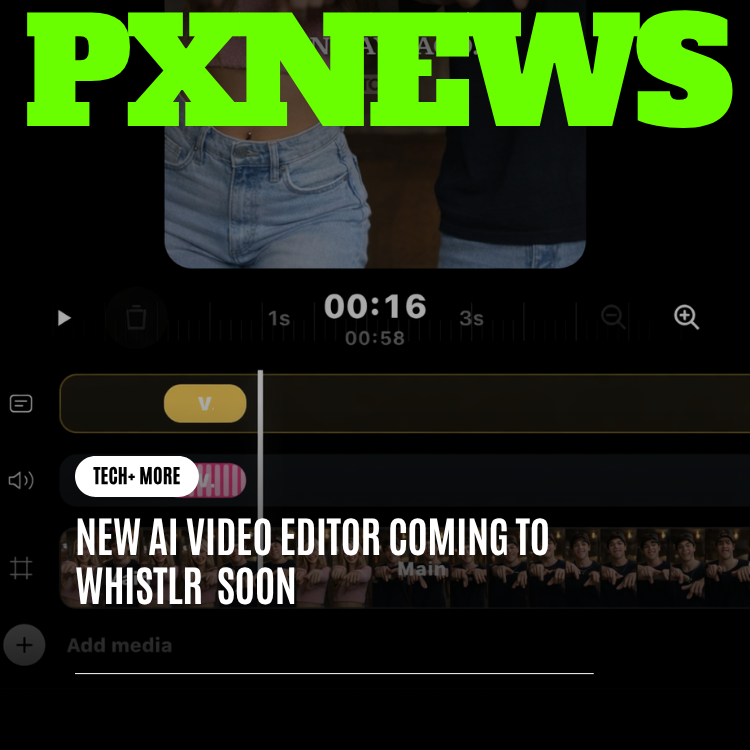
Whistlr's AI video editor brings studio-grade short-form editing directly into the app, so the journey from raw clip to published Mini never leaves the place your audience already lives. Automatic captions, AI voiceover, drag-and-drop transitions, text animations, music, and a real timeline all run inside Whistlr, turning the messy multi-tool workflow that used to define short-form video into a single, fluid creative session.
For years, making a good short-form video meant juggling. You recorded on your phone, sent the file to a desktop editor, exported a draft, dragged it into a captioning tool, paid for a separate stock library, bounced through a text-to-speech site for a voiceover, re-exported, compressed, and finally uploaded the result somewhere else entirely. Every handoff lost time, lost quality, and lost the spark of the original idea. Whistlr's in-app AI video editor was built to collapse that entire chain into one screen — and to make the hard parts feel effortless.
This is a deep look at how the editor actually works, the thinking behind building it inside the app, and what it means for the everyday creators and casual posters who make Whistlr feel alive. We'll cover the real features, the creator workflow from idea to publish, the AI assists that do the heavy lifting, and how the whole thing connects to Minis, Whistlr's short-form vertical video format.
Why An In-App Editor, And Why Now
Whistlr is a friend-first, creator-friendly platform that combines a personalized feed, short-form video, stories, live streaming, messaging, communities, and in-app commerce. Minis — Whistlr's vertical, full-screen short videos — sit at the heart of how people share moments and how new creators get discovered. So the question the team kept returning to was simple: if Minis are this central to the experience, why should creating a great one require leaving the app at all?
The honest answer is that it never should. Legacy social networks have spent a decade training creators to treat editing as a chore that happens somewhere else. That separation made sense when phones were slower and editing was genuinely heavy compute. It makes far less sense today, when a modern web stack and cloud rendering can put a capable timeline and AI assists right where the audience already is.
The editor is a React and Next.js application, the same web foundation that powers the rest of the Whistlr web platform, and it leans on a professional rendering pipeline so that what you preview is what you publish. The mobile apps are built in React Native for iOS and Android, and the entire ecosystem shares a single Supabase backend for authentication, storage, and data. That shared backbone is what makes "edit here, publish here" more than a slogan: your uploads, your account, and your finished video all live in the same system.
"We didn't want to bolt an editor onto Whistlr. We wanted editing to feel like a native part of creating — the same way typing a caption is. The goal was to remove every reason a creator would ever have to open another app."
— ETAPX Product Team
What "Studio-Grade" Actually Means Here
Studio-grade is a phrase that gets thrown around loosely, so it's worth being precise about what the Whistlr editor delivers. It is not a watered-down filter stack with a couple of presets. It is a genuine multi-track timeline editor with frame-accurate playback, layered media, and a rendering engine that produces clean, broadcast-quality MP4 output.
- A real timeline: Clips, audio, captions, text, and visual elements live on separate tracks you can trim, split, reorder, and layer. This is the same mental model professional editors use, simplified for short-form work.
- Frame-accurate preview: The player renders your composition in real time, so the active frame you scrub to is the exact frame that gets exported. There is no guesswork between "draft" and "final."
- Layered media: You can stack a background video, a foreground clip, captions, animated text, stickers, and an audio visualizer, each with its own timing, opacity, blur, brightness, and transform controls.
- True export, not a screen recording: When you export, the project is rendered server-side into a high-quality MP4 file rather than captured from the screen. That's the difference between something that looks like a finished video and something that looks like a phone recording of one.
The editor supports the three aspect ratios that matter for social: 9:16 vertical for Minis and stories, 1:1 square for feed posts, and 16:9 landscape for wider formats. Because Minis are vertical and full-screen, 9:16 is the default home for short-form work, but the same project can be reframed without starting over.
Inside The Timeline: How Tracks And Layers Work
The timeline is the beating heart of any serious editor, and it's worth understanding how the Whistlr editor organizes it, because the structure is what makes complex videos manageable. Everything you add — a clip, an image, an audio file, a caption, a line of animated text, an audio visualizer, a sticker — becomes an item that lives on a track. Tracks stack vertically, and time runs horizontally. An item's horizontal position is when it appears; its track is which layer it sits on.
This separation is what lets you build depth without chaos. Your main footage occupies one track. A second clip layered on top for a picture-in-picture effect sits on another. Captions get their own dedicated track so they never tangle with your media. Music and voiceover each occupy audio tracks of their own, so you can adjust one without disturbing the other. Because each item is independent, you can grab any one of them and trim it, move it, split it, change its timing, or delete it without breaking the rest of the composition.
When the editor generates captions, it creates a brand-new caption track and places every caption item on it at the correct moment — a clean, self-contained layer you can show, hide, restyle, or remove as a unit. The same logic applies to the audio visualizers and animated text: each is its own item with its own lifespan on the timeline, so a visualizer can pulse for exactly the verse you want and a title can hold for exactly the beat it needs.
Selecting any item opens its control panel, where the adjustments relevant to that item type appear — speed and brightness for a video clip, font and color for text, volume for audio, the active-word highlight for captions. This context-sensitive design keeps the interface uncluttered: you only ever see the controls that apply to the thing you're working on, rather than a wall of options that mostly don't.
Bringing Media In: Uploads And Asset Management
Before you can edit, you need material, and the editor makes getting it in straightforward. The uploads panel handles your own files — videos, images, and audio — and organizes them by type so your clips, photos, and sound are easy to find. Uploads are tracked through their lifecycle, so you can see what's pending, what's actively processing, and what's finished and ready to drop onto the timeline.
Because uploads flow into Whistlr's shared storage, your media isn't trapped in a single editing session. A clip you bring in is part of your account's media, available across the experience. That's a meaningful departure from desktop editors, where your assets live in a local project file that can be lost, corrupted, or stranded on one machine. Here, your raw material lives in the cloud alongside everything else you've made.
Combined with the built-in stock library, this gives you two complementary sources in one place: your own footage in the uploads panel, and professional supporting assets a search away. A finished video often blends both — your authentic moment in the foreground, polished B-roll or a clean background filling out the frame.
The Creator Workflow, From Idea To Published Mini
The clearest way to understand the editor is to walk a single video through it, the way a creator actually would. Here is the path from a half-formed idea to a published Mini, with no other apps involved.
- Bring in your footage: Upload a clip you recorded, or pull from your existing media. Uploads flow straight into Whistlr's storage, so your raw files are available the moment they finish processing.
- Drop it on the timeline: Add your main clip, set the aspect ratio to 9:16, and trim away the dead air at the start and end. Splitting and trimming are direct, drag-based gestures, not buried menu commands.
- Layer in supporting media: Add a second clip, a background, an image, or a sticker on its own track. Adjust opacity, blur, brightness, crop, or position with the per-item controls.
- Generate captions automatically: Pick the clip you want captioned, and the editor transcribes the speech and lays down word-timed captions on a dedicated caption track. No manual typing, no manual timing.
- Style those captions: Choose a caption preset, pick colors, set the active-word highlight, and tune the font. This is where a plain transcript becomes the punchy, animated text that short-form audiences expect.
- Add voice, music, or both: Generate an AI voiceover from text in dozens of languages, drop in background music, or add an audio visualizer that reacts to your sound.
- Polish with transitions and animations: Drag a transition between two clips, add an entrance or exit animation to your text, and set the playback speed where you want it.
- Preview the final frame-for-frame: Scrub the timeline and watch the real composition play back. What you see is what you'll get.
- Export and publish: Render to MP4 and push the finished Mini into the Whistlr feed, where it's ready for instant playback by your audience.
The entire loop happens in one place. There's no export-import-export shuffle, no re-uploading a file you already uploaded, no losing the thread of your idea while you wait for a third-party tool to finish. That continuity is the whole point.
Automatic Captions: The Feature That Changes Everything
If there is one feature that single-handedly justifies an in-app editor, it's automatic captions. The overwhelming majority of short-form video is watched without sound, at least at first. Captions are not a nice-to-have; they are the difference between a video that holds attention and one that gets scrolled past in half a second.
In the Whistlr editor, captioning is a two-tap affair. You select the clip you want captioned, and the editor sends the audio through a speech-to-text service that returns a word-level transcript with precise timing. The editor then generates a full caption track automatically, with each line and each word placed on the timeline exactly where it's spoken.
Word-Level, Karaoke-Style Highlighting
What makes these captions feel professional rather than mechanical is that they operate at the word level, not just the line level. Because the transcript carries timing for individual words, the editor can highlight the active word as it's spoken — the karaoke-style effect you see on the most polished short-form content. Out of the box, the editor uses a bright, high-contrast active color and a distinct fill behind the live word, so the text pulses in sync with the voice instead of sitting there as a static block.
That single detail is what separates captions that look hand-crafted from captions that look auto-generated. And here, you get the hand-crafted look automatically.
Captions You Can Actually Style
Auto-generated doesn't mean locked-down. Once the captions exist, they're fully editable. You can:
- Pick a preset: Choose from a library of caption styles so your text matches the energy of the video without designing from scratch.
- Control colors: Set the base text color, the active-word color, and the highlight fill independently for the exact look you want.
- Tune the words: Adjust how many lines appear per caption and how the words break, so nothing crowds the frame or covers a face.
- Animate the appearance: Layer in caption animations so text doesn't just appear — it arrives with intention.
- Fix the transcript: Correct any word the transcription missed, the same way you'd fix a typo, because the captions are real editable text on a real track.
"Captions used to be the step where creators gave up. They'd record something great, then realize they had to retype and retime every word in another tool. Now it's two taps, and the result already looks like the videos people study and try to copy."
— ETAPX Engineering
AI Voiceover In Dozens Of Languages
Not every great Mini features the creator's own voice. Explainers, listicles, faceless niche content, accessibility narration, and localized versions of a video all benefit from a clean, generated voiceover. The Whistlr editor includes an AI voice panel for exactly this.
You type or paste your script, choose a voice, and the editor generates spoken audio you can drop straight onto the timeline. The voice library spans a wide range of languages — English, Spanish, Hindi, French, German, Italian, Portuguese, Russian, Japanese, Korean, Chinese, Arabic, Turkish, Dutch, Polish, and many more — with options across different genders and vocal characters. You can filter by language and voice type to find the right fit, preview each voice before committing, and then place the generated narration exactly where you need it relative to your visuals.
This matters for two big reasons. First, it lowers the barrier for creators who don't want to be on-camera or who don't love the sound of their own recorded voice. Second, it makes localization realistic. A creator can take a single video and produce a Spanish, French, or Japanese voiceover for it without hiring talent or leaving the app — opening the same content to entirely new audiences.
Music, Sound, And Audio Visualizers
Audio is half of short-form video, and the editor treats it that way. Beyond AI voiceover, you can add background music and sound to your project, layered on their own audio tracks with independent volume control. Music tracks sit alongside your clips on the timeline, so you can time a beat drop to a cut or duck the music under a voiceover.
The editor also includes audio visualizers — animated elements that react to your sound in real time. There are several styles available, including linear bars, radial bars, wave forms, and hill-shaped visualizers. These are especially powerful for music clips, podcast snippets, and any video where the audio is the star, giving an otherwise static frame a sense of motion that's tied directly to what's being heard.
Transitions, Effects, And Text Animation
Cuts hold a video together; transitions and effects give it personality. The Whistlr editor ships with a panel of draggable transitions you place between clips — slide and wipe transitions in all four directions, plus more — each with a live preview thumbnail so you can see the motion before you commit. Dragging a transition onto the seam between two clips is all it takes.
Per-Clip Visual Controls
Every media item on the timeline carries its own set of adjustments, so effects are applied surgically rather than slapped across the whole video:
- Speed and playback rate: Slow a moment down for emphasis or speed through filler.
- Brightness and blur: Correct exposure or pull focus toward a subject.
- Opacity: Blend layers, create overlays, or fade elements in and out.
- Crop, flip, and transform: Reframe a clip, mirror it, or reposition it within the frame.
- Corner radius and outline: Round and frame picture-in-picture clips and stickers.
- Shadow: Add depth to text and elements so they read clearly over busy footage.
Animated Text That Earns Attention
Text is its own creative surface in the editor. Beyond static titles, you can apply entrance, loop, and exit animations to text — a deep library of named animation styles that bring titles, hooks, and call-outs to life. You control the font family, the styling, and the duration of each animation, so a hook can snap in at the right beat and a call-to-action can hold on screen exactly long enough to register. Combined with stickers and other visual elements, this is where a basic clip starts to feel like a designed piece of content.
Stock Media, Built In
Sometimes the clip you need isn't one you shot. The editor integrates a stock media library so you can search for and drop in professional video and image assets without subscribing to a separate stock service or worrying about where a file came from. Need a city skyline, a slow-motion coffee pour, or an abstract background behind your text? It's a search away, inside the same editor, ready to layer onto your timeline alongside your own footage.
This closes one of the most annoying gaps in the old workflow. Stock libraries were almost always a separate tab, a separate login, and a separate cost. Folding them into the editor means a creator can assemble a complete, polished video — their footage plus supporting B-roll — without ever opening a browser tab.
How The AI Actually Helps
It's worth being clear-eyed about what "AI" means in this editor, because the term is so overused. The AI in the Whistlr editor isn't a gimmick or a chatbot bolted to the side. It shows up in specific places where it genuinely removes drudgery and lowers the skill barrier.
- Speech-to-text transcription: The captioning system uses AI to turn spoken audio into accurately timed, word-level text. This is the heaviest manual task in short-form editing, and it's now automatic.
- AI voice generation: Natural-sounding synthetic voices in dozens of languages let creators narrate without recording, and localize without re-hiring.
- Smart assists across the interface: The editor is structured so that the tedious, precision-heavy parts — timing captions to the word, matching audio to visuals — are handled for you, while the creative decisions stay in your hands.
The philosophy is deliberate: AI does the parts that are tedious and error-prone, and the creator keeps full control over the parts that are expressive and personal. You're never handed a finished video you didn't make. You're handed a head start on the work nobody enjoys.
"The best AI in a creative tool is the AI you don't have to think about. It quietly does the transcription and the timing, and you get to spend your energy on the joke, the hook, the story — the things only you can do."
— ETAPX Product Team
The Old Way Versus The Whistlr Way
To appreciate what's changed, it helps to lay the two workflows side by side. The old way of making a captioned, voiced, music-backed short video looked something like this: record on your phone, transfer to a computer, import into a desktop editor, manually cut and arrange, export a rough draft, upload that draft to a captioning service, manually correct and retime the captions, export again, jump to a text-to-speech site for a voiceover, download the audio, re-import into the editor, find royalty-free music somewhere, license it, drop it in, export a final version, compress it so it would upload, and finally post it to a social app.
That's a dozen steps across five or six tools, multiple exports that each degrade quality, and several accounts and subscriptions. It's also a process that quietly excludes a huge number of people — anyone who doesn't have a desktop editor, doesn't want to learn one, or simply doesn't have an hour to spend.
The Whistlr way is one tool, one timeline, one export. Upload, arrange, auto-caption, add voice and music from inside the editor, drag in transitions and animations, preview the real thing, and publish straight to Minis. Quality is preserved because there's a single high-quality render at the end rather than a chain of lossy re-exports. And it's accessible because it runs in the app you already have open.
Lowering The Barrier To Great Content
Whistlr's positioning as friend-first and creator-friendly isn't just about who the platform is for — it's about who gets to participate. The in-app editor is one of the most direct expressions of that value, because it dramatically lowers the skill, time, and cost barriers that have historically separated "creators" from "people who'd like to make something good."
For The Casual Poster
Most people on any social platform aren't full-time creators. They're someone sharing a trip, a recipe, a pet, a hot take, a small business. For them, the difference between a video that lands and one that flops is usually polish — captions, a clean cut, decent audio — not raw talent. The editor hands that polish to everyone. A first-time poster can produce a captioned, music-backed Mini that looks every bit as finished as a pro's, in minutes, on their phone.
For The Emerging Creator
For creators who are building an audience, the editor removes the production bottleneck that limits how much they can publish. Consistency is the single biggest driver of growth in short-form video, and consistency is murdered by friction. When editing is fast and in-app, a creator can ship more, experiment more, and respond to trends while they're still trends — instead of spending the trend window wrestling with export settings.
For The Non-Native Speaker And The Globally Minded
The breadth of languages in the AI voice library and captioning is a quiet equalizer. A creator can reach beyond their own language community, and a viewer can engage with content that's been narrated or captioned in a language they understand. That's a meaningful expansion of who can create for whom.
Real Use Cases: What People Actually Make
Features only matter in the context of what they let people create. Here are concrete scenarios the editor was built to serve, each drawing on a different combination of its tools.
The Talking-Head Explainer
A creator records themselves explaining a concept to camera. They drop the clip on the timeline, trim the rambling intro, and auto-generate captions so the explanation is followable on mute. They pick a bold caption preset with a bright active-word highlight, add a low-volume music bed for energy, and place an animated text hook on the first frame — "Here's the one thing nobody tells you." Five minutes of work turns a raw selfie video into a polished, captioned Mini.
The Faceless Niche Video
Someone running a niche account — facts, finance tips, history snippets — doesn't want to appear on camera. They pull stock footage from the built-in library to match each line of their script, write the script into the AI voice panel, generate a clean narration, and let auto-captions sync to the generated voice. With transitions between the stock clips and an audio visualizer for texture, they produce a fully professional faceless video without ever filming a thing.
The Localized Repost
A creator with a hit video wants to reach a new language audience. They take the existing project, swap the voiceover by generating narration in the target language, regenerate captions to match, and export. One piece of content becomes two, each native to its audience, without re-shooting or hiring talent.
The Small-Business Promo
A small shop films their product, adds it to the timeline at 9:16, layers a clean stock background behind a cut-out shot, captions the key selling points, drops in upbeat music, and animates a closing call-to-action. The finished Mini becomes promotional fuel that can point viewers toward the shop's products inside Whistlr's commerce features — a complete marketing asset made on a phone.
The Music And Mood Clip
A musician sharing a snippet of a new track wants the audio to feel visual. They add the song to an audio track, drop a radial or wave audio visualizer onto the canvas so the frame moves with the music, layer animated lyrics as text, and export a clip that turns a static music post into something with motion and life.
Accessibility Is A First-Class Feature
It's easy to frame captions purely as an attention-retention tactic, but they're also an accessibility necessity. Automatic captions make every captioned Mini watchable by people who are deaf or hard of hearing, and by the enormous audience watching on mute in public spaces. By making captions effortless and automatic, the editor doesn't just help videos perform better — it helps make the platform's short-form content broadly accessible by default, rather than as an afterthought a creator has to remember.
The AI voice tools cut the other way too. Generated narration can give a voice to text-based content, and the breadth of supported languages widens who can both create and consume. Accessibility, in this editor, isn't a separate compliance checkbox bolted on at the end — it's a natural byproduct of features that creators already want to use, which is the most durable way to make a platform inclusive.
Performance And The Rendering Pipeline
A capable editor that's slow or that bogs down the device is a contradiction, so the architecture splits the work thoughtfully. Real-time preview and editing happen interactively, giving you immediate feedback as you trim, restyle, and rearrange. The heavy lifting of producing the final file — encoding every frame, baking in transitions, animations, and captions, mixing the audio — is handled by a server-side rendering pipeline rather than your phone or laptop.
This division matters for two reasons. First, it keeps the editing experience responsive even on modest hardware, because your device isn't being asked to render broadcast-quality video in real time. Second, it guarantees output quality: a dedicated render pipeline can produce a properly encoded, high-bitrate MP4 that looks crisp full-screen, instead of the compromised file a constrained device might manage. The result is the best of both worlds — a snappy editor and a clean final product.
It also reflects a broader engineering value across Whistlr, where Minis are tuned for instant, preloaded playback so videos start the moment you swipe. A platform that cares this much about the viewing experience naturally cares about the quality of what gets fed into it, and the editor's render pipeline is where that care is enforced.
Edge Cases And Honest Limits
No tool is magic, and it's worth naming where care is still required. Automatic transcription is excellent but not infallible — heavy background noise, strong overlapping speech, or unusual proper nouns can produce a word the system gets wrong. That's exactly why the captions remain fully editable text: a quick correction fixes anything the AI missed. The workflow assumes a human in the loop for the final read-through, and that's by design, not by accident.
Synthetic voices, similarly, are best for narration, explainers, and localized voiceover. For deeply personal, emotional storytelling, a creator's own voice will often still be the right call — and the editor fully supports recording and using your own audio. The AI voice is an option that expands what's possible, not a replacement for authenticity where authenticity matters.
Rendering a high-quality MP4 is real work, handled by a server-side pipeline rather than crammed onto the device, which is what keeps export quality high without melting your phone. Complex projects with many layers naturally take a little longer to render than a single trimmed clip. The trade-off is intentional: a clean, properly encoded final file beats a fast, degraded one every time, especially for video that needs to look good at full-screen on a phone.
How It Connects To The Wider Whistlr Ecosystem
The editor isn't a standalone island; it's a stage in a larger creative pipeline that runs across the whole platform. Because everything shares one Supabase backend, your account, your uploaded media, and your published videos all live in the same system, and the editor plugs into that fabric directly.
- Straight into Minis: A finished export is built for Whistlr's short-form format. Minis are engineered for instant, TikTok-style playback in the feed, with preloading that makes the next video start the moment you swipe — so the polished video you export lands in an experience tuned for it.
- Feeds beyond short-form: The same editor handles 1:1 and 16:9 output, so the same skills and the same project produce content for the main feed and for stories, not just Minis.
- Creator Studio: Whistlr's creator tools — analytics and monetization — give creators a reason to keep producing and a way to understand what's working. The editor feeds that loop by making production fast enough to act on insights.
- Commerce and live: In a platform that also offers in-app commerce and live streaming, polished short-form video becomes promotional fuel — a way to drive viewers toward a product pin, a shop, or a scheduled stream.
The throughline is that creating, refining, and distributing video all happen under one roof. The editor is the refining stage, and it was built so that the step before it (capture and upload) and the step after it (publishing to a feed tuned for video) connect without seams.
The Thinking Behind The Design Decisions
A few choices in the editor are worth unpacking, because they reveal the priorities behind it.
Drag-And-Drop Over Menus
Transitions, media, and elements are placed by dragging them onto the timeline or the canvas, not by hunting through nested menus. This is a deliberate bet that direct manipulation is faster to learn and faster to use, especially for people coming from no editing background. You move the thing where you want the thing to go. That intuition transfers from the physical world, so there's almost nothing to "learn."
Presets That Respect Taste
The caption and text preset libraries exist because most creators don't want to be typographers — they want a look that works. But the presets are starting points, not cages: every value they set is still adjustable. The design respects that some people want one tap to a great result and others want to control every pixel, and it serves both without forcing either.
WYSIWYG Preview That Tells The Truth
The frame-accurate player exists so that the preview never lies to you. One of the most demoralizing experiences in any editor is exporting and discovering the result doesn't match what you saw. By rendering the actual composition in the preview, the editor builds trust — you can commit to a publish without holding your breath.
"Every decision in the editor answers one question: does this remove friction for someone who just wants to make something good and share it with friends? If it does, it ships. If it adds a step, we look harder."
— ETAPX Product Team
Practical Tips For Getting The Most Out Of It
A handful of habits will make the editor sing, especially for creators new to short-form.
- Caption first, polish second: Generate captions early. Reading them back is the fastest way to spot where the video drags and where to cut.
- Hook in the first second: Use an animated text hook on the opening frame. Short-form audiences decide almost instantly, and a bold, animated line buys you a moment of attention.
- Keep captions clear of faces: Tune lines-per-caption and position so text never covers expressions or important action.
- Let music breathe under voice: If you're using both AI voiceover and music, lower the music volume so narration stays crisp.
- Use speed deliberately: Slowing a key moment and speeding through filler keeps energy high and respects the viewer's time.
- Stay vertical for Minis: Compose in 9:16 from the start so nothing important gets cropped when it plays full-screen.
Frequently Asked Questions
Do I need any editing experience to use the Whistlr AI video editor?
No. The editor is built for people with zero editing background as much as for experienced creators. Automatic captions, AI voiceover, preset styles, and drag-and-drop placement mean you can produce a polished Mini without learning timeline jargon. As you get comfortable, every advanced control is there when you want it.
How do automatic captions work, and can I edit them?
You select the clip you want captioned and the editor transcribes the speech into word-level, accurately timed captions placed on their own track. Captions are fully editable text — you can correct any word, restyle them, change colors, set the active-word highlight, and animate how they appear. The transcription gives you a finished-looking starting point that you can refine in seconds.
What languages does the AI voiceover support?
The AI voice library spans a wide range of languages — including English, Spanish, Hindi, French, German, Italian, Portuguese, Russian, Japanese, Korean, Chinese, Arabic, Turkish, Dutch, Polish, and many more — with multiple voices and voice types per language. You can filter by language and gender, preview voices before choosing, and place the generated narration anywhere on your timeline.
Can I add my own music and stock footage?
Yes to both. You can upload and add your own audio and clips, and the editor also includes a built-in stock media library so you can search for professional video and image assets and drop them straight onto the timeline — no separate subscription or download needed. Background music and audio visualizers are available as well.
What aspect ratios and output formats does it support?
The editor supports 9:16 vertical (ideal for Minis and stories), 1:1 square, and 16:9 landscape. When you're done, it renders a high-quality MP4 file through a server-side pipeline, so the final video matches your preview and is properly encoded for full-screen mobile playback.
How is editing inside Whistlr better than using separate apps?
It collapses a multi-tool, multi-export workflow into a single session. Instead of bouncing between a desktop editor, a captioning service, a text-to-speech site, a stock library, and the social app, you do everything in one place. That preserves quality (one clean render instead of several lossy ones), saves significant time, and removes the friction that stops most people from publishing consistently.
Does the editor run on mobile, or only on the web?
The editor is a React and Next.js web application within the Whistlr web platform, and the broader Whistlr experience runs natively on iOS and Android through the React Native apps, all sharing one Supabase backend. Your account, uploads, and published videos are consistent across the ecosystem, so creation and distribution stay connected.
What happens to my video after I finish editing?
You export it to MP4 and publish it as a Mini into the Whistlr feed, where it's served with instant, preloaded playback so viewers can swipe through with no buffering. The same project can also be exported in square or landscape for the main feed and stories.
Where The Editor Goes From Here
The in-app AI video editor is best understood as a foundation rather than a finished destination. By bringing transcription, AI voice, a real timeline, transitions, animation, music, and stock media into a single screen, Whistlr has established that studio-grade short-form editing belongs inside the app — not scattered across half a dozen tools that fragment a creator's time and attention.
From here, the natural arc is deeper, smarter assistance: editing that understands the shape of a good Mini, that suggests cuts and hooks, that makes localization a single tap, and that keeps removing the gap between having an idea and seeing it published. Every step on that arc points the same direction the editor already points — toward a world where anyone, on any device, can turn a raw moment into something polished and worth sharing, without ever leaving the place their friends and audience already are.
That's the real promise behind Whistlr's AI video editor. Not just faster editing, but a lower barrier to expression — a creative tool that meets people where they are, does the tedious work for them, and hands them back the part that was always the point: making something they're proud to share.