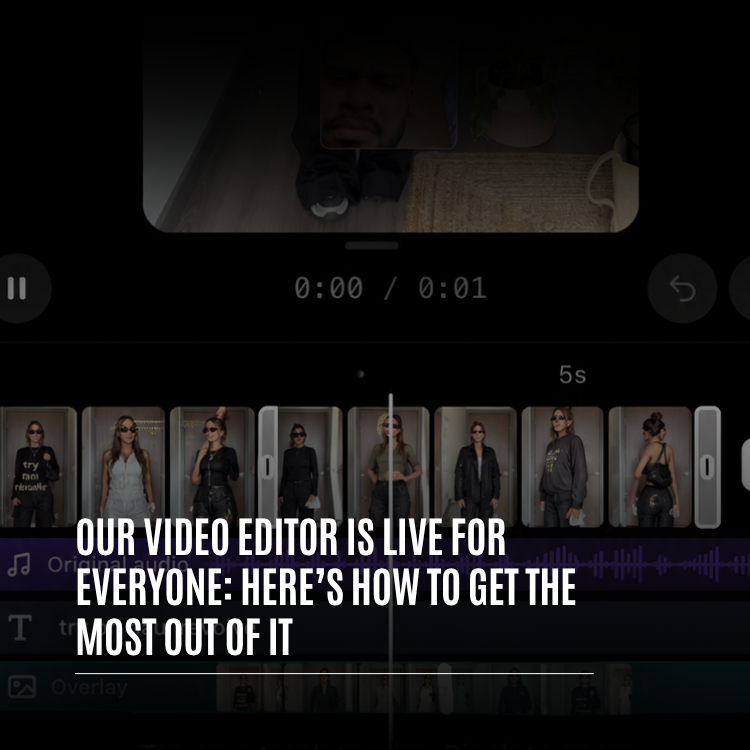
The Whistlr video editor is now live for everyone. Every person on Whistlr can open a real multi-track editor right inside the app, cut clips on a timeline, add music and voiceover, generate captions automatically, layer text, stickers, photos and video overlays, apply filters and effects, and reach for pro tools like speed curves, keyframes, freeze frames and chroma key, all without leaving the place where they post. This guide covers what's in the Whistlr video editor, where to find it, how each tool works, how your work stays safe while you edit, and the habits that help you get the most out of it, whether you're trimming your first clip or building a ten-minute video from a dozen takes.
If you've followed PX News, you've watched this editor take shape. We wrote about the in-app AI video editor when it first arrived, previewed where it was headed next, and gave Whistlr Studio its own front door. Since then, the editor inside the Whistlr app has been rebuilt from the timeline up, tested with early users, and refined almost daily based on what they told us. That rebuilt editor is the one rolling out to everyone now. This article is the practical companion to it: less about why we built it, more about how to use it well.
What's New: The Whistlr Video Editor Is Live for Everyone
The short version: the full editor is open to every Whistlr user. You don't need a Creator account, a follower count, or a subscription to use it. If you can post a video on Whistlr, you can edit one with the same tools our most active creators use.
What changed along the way is the depth of the editor itself. The timeline now holds your main clips on a filmstrip row at the bottom with dedicated lanes above it for original audio, music, voiceover, text and overlays. Edits snap to the playhead and to each other. A contextual toolbar appears when you select a clip, so the controls you see always match the thing you're working on. And a set of pro tools, from speed ramps to green-screen keying, sits one tap away for the moments a simple cut isn't enough.
"The best editing tools shouldn't be reserved for people who already have an audience. Everyone on Whistlr has a story worth telling well, so everyone gets the same editor. A first-time poster and a full-time creator open the same timeline, and the only difference between their videos should be the ideas behind them."
— AJ, Founder & CEO, ETAPX
Where to Find the Whistlr Video Editor
The editor lives inside the normal posting flow, so there's nothing extra to download or turn on. Start a new post, record with the Whistlr camera or choose a video from your gallery, and the editor opens on your clip. From there you can add more clips with the plus button, pulling from the camera or your gallery, and they join the main row on your timeline.
When you're finished, tap Next and the composer opens right away. You don't wait for the export to finish before writing your caption. The final render runs in the background while you type, and your post uploads once it's done.
A Tour of the Editor Screen
The editor is laid out in three layers from top to bottom: the preview, the timeline, and the toolbar. Once you know what each layer does, everything else falls into place.
The Preview and Transport Bar
The preview at the top shows your video exactly as it will post, with captions, text, stickers, filters and effects in place. Under it, the transport bar holds play and pause, the current time against the total length, and undo and redo. You can drag text and stickers directly on the preview, and they snap to the frame's center lines with a visible guide, so centering a title takes one motion instead of a dozen nudges.
The Timeline and Its Lanes
The timeline is where the real editing happens. A ruler runs across the top, and a white playhead line runs through every row so you always know which moment you're looking at. Your main clips sit on a filmstrip row at the bottom. Above them, lanes hold each kind of content separately:
- Original audio: The sound recorded with your clips, which you can turn down, mute or clean up.
- Music: The song you choose, with beat dots marking where the beats land.
- Voiceover: Narration you record over the video, shown as its own takes.
- Text and stickers: Titles, captions, emoji and stickers, each as a clip you can move and trim.
- Overlay: Photos and videos placed on top of your main clips, with up to three video rows in total.
Pinch the timeline to zoom in for frame-level trims or zoom out to see the shape of the whole video. When you move or trim a clip, its edges snap to the playhead and to the edges of other items, with a small tick each time, so lining up a caption with a cut happens naturally.
The Toolbar and Contextual Tools
With nothing selected, the toolbar at the bottom shows the main tools: Text, Sticker, Audio, Effects, Filters, Photo, Overlay, Captions, Voiceover, Voice effects, Adjust, Speed, Transitions, Draw, Crop and Volume. Tap a clip on the timeline and the toolbar switches to tools for that clip, like Split, Speed, Volume, Delete, Enhance audio, Cut silences, Extract audio, Duplicate, Replace and Reorder. Tap the back arrow to return to the main set.
Cutting Your Story: Trim, Split, Reorder, and Transitions
Every good video starts with a clean cut. The Whistlr video editor gives you the core editing moves professional editors rely on, shaped for a phone screen.
Trim and Split
Drag the handles at either end of a clip to trim it. The handles need a deliberate drag, so a stray tap while you scroll won't shave a second off your clip by accident. To cut a clip in two, move the playhead to the moment you want and tap Split. Each piece becomes its own clip that you can trim, move, delete or give a different effect.
Reorder Clips
Long-press any clip on the main row and the timeline collapses into square tiles you can drag left and right. Let go, and the tiles expand back into the timeline in their new order with no gaps.
Transitions
Tap the seam between two clips to add a transition. The editor offers fourteen, grouped so you can find the right feel quickly:
- Basic: Dissolve, Fade black, Fade white and Blur, for soft, natural changes between scenes.
- Motion: Slide left, Slide right, Slide up, Slide down and Wipe, for clips that push each other off screen.
- Camera: Zoom in, Zoom out and Spin, for energy that feels like the camera moved.
- Effects: Flash and Glitch, for punchy cuts on a beat or a reveal.
Sync to Beat
Once you've added music, tap Sync to beat and the editor moves the cuts between your main clips onto the song's beats. It only ever shortens clips, never adds footage you trimmed away, and it keeps your row gap-free. It's the fastest way to make a montage feel like it was cut to the music, because it was.
Audio Tools in the Whistlr Video Editor
Sound is half of any video, and it's often the half that decides whether someone keeps watching. The editor treats audio as seriously as the picture.
Music, Volume, and Voiceover
Add a song from the Audio tool, then tap Edit to choose exactly which part of it plays. The music lane shows beat dots so you can line up cuts by eye. The Volume tool gives every audible source its own slider and mute toggle, including your original audio, music and voiceover, so you can duck the song under your voice in seconds.
To record a voiceover, open Voiceover and press the big record button. Recording starts from the playhead while your video plays, so you can react to what's on screen in real time. Your take grows as a red lane under the playhead. When you stop, play it back with the video, retake it if you want another pass, or tap Done to add it to the timeline.
Voice Effects and Text to Speech
Voice effects change how a voice sounds across a single clip or the whole video. Choose from Announcer for a deep broadcast tone, Helium, Giant, Vocalist for tuned, doubled vocals, Robot and Echo. For videos where you'd rather not use your own voice, select any text on the timeline and tap Text to speech. A voice reads your text out loud as an audio clip placed right where the text starts, at Slow, Normal or Fast speed.
Enhance Audio and Cut Silences
Two tools in the clip toolbar do the kind of cleanup that used to need a separate audio app:
- Enhance audio: One tap cleans up the voice in a clip by bringing down background noise and room echo, shaping the voice and evening out the level. A strength slider lets you dial it in, and you can apply it to every clip at once.
- Cut silences: The editor finds the pauses in a clip and cuts them out. Choose Light to keep natural pauses, Medium for a tighter feel, or Tight for a fast-paced talking video. The cuts are ordinary splits, so every piece can still be trimmed, and the whole change is a single undo step.
"We watched people edit, and the moments they gave up were almost never creative ones. It was retyping captions, chopping out pauses one by one, fighting a noisy room. So we put the tedious work behind single taps and left every creative decision in the creator's hands. Cut silences is a good example: it does the chopping, and you still decide what stays."
— Renata Osei, VP of Product, ETAPX
Captions, Text, and Stickers
Captions make videos watchable on mute, accessible to more people, and easier to follow. The Captions tool generates them automatically from the speech in your video.
Automatic Captions
Open Captions, choose Auto-detect or pick a language from the list, and the editor transcribes your video into timed captions on their own lane. From there you can style them with presets and word-by-word animations like Pop, Highlight, Box, Bounce, Reveal, Rise and Type, where the spoken word lights up or pops as it's said. Choose how much appears at once: Punchy for one to three words at a time, Balanced for a short line, or Full for up to two lines. Then set the size and place them at the top, middle or bottom of the frame.
Captions stay fully editable. Open the line list, tap a line to jump to that moment, and tap again to fix a word. The word timings follow your edit, so the highlighting stays in sync.
Animated Text
Text is its own creative tool. Add a title or a hook, choose a font and style, and give it an entrance, a loop or an exit animation. Options include Fade, Pop, Slide, Typewriter, Word by word, Rise, Bounce, Wave, Zoom, Blur, Glitch and Neon. Each text clip sits on the timeline, so you control exactly when it appears and how long it stays.
Stickers, Photos, and Drawing
Stickers and emoji drop onto the preview and the timeline the same way text does. The Photo tool places a picture on top of your video, and Draw lets you sketch directly on the frame with different brushes, sizes and colors. Drawings export as clean vector paths, so they stay sharp at full resolution.
Looks and Effects: Filters, Adjust, and the Effects Lane
Once the cut is right, the look ties it together. The editor gives you three layers of visual control.
- Filters: The same filters you see in the Whistlr camera, shown as a carousel of circles previewing the frame under your playhead, with a strength slider. Apply one to a single clip or to the whole video.
- Adjust: Fine-tune Brightness, Contrast, Saturation, Warmth, Fade, Highlights, Shadows, Structure, Vignette, Sharpen and Grain for each clip.
- Effects: Seventeen visual effects you add from the playhead and trim like any other clip, grouped as Motion (Shake, Zoom pulse, Blur in, Blur out, Echo), Light (Flash, Light leak, Bokeh), Retro (RGB split, VHS, Glitch, Film grain, Old TV) and Magic (Sparkle, Confetti, Hearts, Snow).
Because effects live on the timeline, you can put a Zoom pulse on exactly one beat or run Snow under a single scene. The Crop tool rounds out the set, letting you reframe a clip without reshooting it.
Pro Tools: Speed Curves, Keyframes, Freeze Frames, Chroma Key, and Reverse
For the edits that need more than a cut and a filter, the editor includes a set of pro tools that used to be reserved for desktop software.
Speed and Speed Curves
The Speed tool offers constant speeds from 0.3x up to 4x, with the choice to keep the sound or mute it. Switch to Curve for speed ramps that change pace within a clip. Presets include Montage, Hero, Bullet, Jump cut, Flash in and Flash out, and Custom lets you shape your own curve. A Hero ramp that slows down at the big moment is one of the easiest ways to make a simple clip feel cinematic.
Keyframes
Keyframes let text, stickers and overlay clips move over time. Pin an item's position, size, rotation and opacity at one moment, then pin it differently at another, and the editor animates smoothly between them. Use keyframes to slide a label in next to a product, grow a sticker on a punchline, or drift a picture-in-picture clip across the frame.
Freeze Frame and Reverse
Freeze holds the frame under your playhead as a still for anywhere from 0.8 to 10 seconds, and everything after it moves over to make room. The still behaves like any other clip, so it can take a transition, text or an effect. Reverse plays a clip backward, perfect for a pour, a jump or a toss that looks better in rewind.
Chroma Key and Overlay Rows
Chroma key turns one color in an overlay clip transparent. Pick the color with the eyedropper on the preview, adjust the strength, and choose whether to keep soft shadows. A green-screen clip then sits naturally on top of the video underneath. Overlay clips can live on up to three video rows. Use Row up and Row down to change which one sits on top, and Unify to move every video row back into the main row when you want a simple sequence again.
Built So You Never Lose Your Work
An editor is only as good as your confidence in it. If one wrong tap or one phone call can wipe out twenty minutes of work, you edit nervously. We built the Whistlr video editor so you can experiment freely.
- Deep undo history: Undo and redo cover up to 50 steps, so you can try an idea and take it back without thinking twice.
- Crash-recovery drafts: Once you've made a real change, the editor keeps a recovery draft. If the app closes unexpectedly, Whistlr offers to bring back your edit the next time you open it.
- Background rendering: Your final video renders while you write your caption. If you switch apps or your phone pauses the render, it picks back up when you return instead of failing.
- No half-finished files: Each render is checked before it's used, so the video that posts is always a complete, finished file.
"I used to edit on one app, caption on another, and then export twice before I could post. Now I cut, sync to the beat, run captions and post from the same screen. Cut silences alone saves me fifteen minutes on every talking video, and the Hero speed ramp makes my outfit transitions look like I hired someone."
— Maya, fashion creator on Whistlr
How to Edit Your First Video on Whistlr
If you're new to editing, here's a simple path from raw clips to a finished post. You can follow it in a few minutes and add more tools as you get comfortable.
- Start a post and add your footage. Record with the Whistlr camera or choose a video from your gallery. Use the plus button to add more clips to the main row.
- Trim the dead air. Drag each clip's handles to cut the slow start and the awkward end. Use Split to remove anything in the middle.
- Put the clips in order. Long-press a clip and drag the tiles until the story flows.
- Add music and sync it. Choose a song in Audio, tap Edit to pick the section you want, then tap Sync to beat to line up your cuts.
- Generate captions. Open Captions, choose Auto-detect, pick a style, and skim the line list for any word to fix.
- Add a hook. Place animated text on the first second so viewers know why to keep watching.
- Balance the sound. Open Volume and lower the music under your voice. Try Enhance audio if the room was noisy.
- Pick a look. Apply a filter, then nudge Brightness or Warmth in Adjust if a clip doesn't match the rest.
- Watch it through once. Play the full video from the start and fix anything that drags.
- Tap Next and post. Write your caption while the video renders in the background, then share it.
Tips to Get the Most Out of the Whistlr Video Editor
The tools do a lot of the heavy lifting, but a few habits separate a good edit from a great one.
- Caption early: Generate captions before you polish. Reading your own words back is the fastest way to spot where the video drags.
- Hook in the first second: Open on your strongest moment or a bold line of text. People decide fast whether to keep watching.
- Let the beat do the cutting: For montages, trim roughly, then let Sync to beat place the cuts.
- Use Punchy captions for energy: One to three words at a time keeps fast videos feeling fast. Switch to Full for calm, explanatory content.
- Save pro tools for key moments: A single speed ramp or freeze frame on the payoff lands harder than effects on every clip.
- Clean the audio before adding music: Run Enhance audio and Cut silences first, then layer the song, so you're balancing clean sound.
"Most of the engineering in this editor is in places you'll never notice, and that's the point. The preview and the export share the same math, so a keyframe lands on the same frame in both. Renders keep going when you switch apps. A crash doesn't cost you your edit. When the tool is that dependable, people stop editing carefully and start editing creatively."
— John Ridge, CTO, ETAPX
Frequently Asked Questions
Is the Whistlr video editor free for everyone?
Yes. The Whistlr video editor is free and available to every Whistlr user inside the app's posting flow. You don't need a Creator account, a minimum number of followers, or a subscription. Every tool, including captions, effects and pro tools like speed curves and chroma key, is open to all accounts.
How long can a video be in the Whistlr video editor?
You can edit videos up to 10 minutes in total. That limit covers all of your combined clips, so you can build a longer video from many short takes. If an edit runs over, the editor lets you know so you can trim it before posting.
How do I add automatic captions to a video on Whistlr?
Open the Captions tool in the editor, choose Auto-detect or select a language, and the editor transcribes the speech into timed captions on their own lane. You can then choose a caption style, set how many words appear at once, adjust size and position, and tap any line to correct a word.
Can I add music and make my cuts match the beat?
Yes. Add a song from the Audio tool, tap Edit to choose which part of it plays, and then tap Sync to beat. The editor moves the cuts between your main clips onto the song's beats, keeping your timeline gap-free and never adding footage you trimmed away.
What pro editing tools does the Whistlr video editor include?
The editor includes speed control from 0.3x to 4x, speed curves like Hero, Montage and Bullet, keyframes for animating text, stickers and overlays, freeze frames from 0.8 to 10 seconds, reverse, chroma key for green-screen clips, and up to three video rows for layered overlays.
What happens if the app closes while I'm editing?
Your work is saved in a recovery draft. As soon as you make a real change, the editor keeps a draft of your edit, and if the app closes unexpectedly, Whistlr offers to restore it the next time you open the app. The editor also keeps up to 50 steps of undo while you work.
The Whistlr video editor is now live for everyone, with the same timeline, the same tools and the same safety nets for every account. Open the Whistlr app, start a new post, and turn your next set of clips into something you're proud to share.