Knowing how many people saw your post is easy. Knowing who they were, when they showed up, how long they stayed, and whether they came back is what actually helps you grow. Today we're giving Whistlr creators far more in-depth insights to understand their audience. Whistlr creator insights now cover five connected views, Overview, Content, Viewers, Followers, and LIVE, with audience demographics, follower and non-follower breakdowns, most-active-time heatmaps, watch behavior on every post, viewer feedback, net follower growth, and a full picture of the supporters behind your live streams. This guide walks through what's new, what each insight tells you, how we protect your audience's privacy while showing you more, and how to turn the numbers into better content, better timing, and a stronger community.
Back in April, we introduced Creator Insights with a simple promise: analytics that focus on the signals behind lasting growth instead of vanity metrics. Since then, creators have told us what they wanted next. They didn't want more numbers. They wanted deeper answers to a handful of questions: Who is my audience? When are they around? What do they actually watch? Who's new, and who's loyal? This update is built around those questions, in the Creator Dashboard at whistlr.studio and in the Insights section of the Whistlr app.
What's New in Whistlr Creator Insights
The biggest change is depth. Insights used to tell you how your content performed. Now they also tell you about the people behind that performance, while keeping individual privacy intact. Here's the short version of what this update adds.
- Audience demographics: Gender, age range, and location breakdowns for both your followers and the people who visit your profile.
- Followers vs. non-followers: See how much of your reach, engagement, and profile traffic comes from people who already follow you and how much comes from people who don't yet.
- Most active times: A weekday-by-hour heatmap of when your followers are on Whistlr, in your own time zone.
- Watch behavior: How long people actually stay on your posts, from skipped quickly to watched for 30 seconds or more.
- Viewer feedback: How often people hid a post, tapped not interested, muted you, or reported a post.
- Net follower growth: New followers, unfollows, and the net difference, instead of a single total that hides churn.
- Live audience and supporters: Peak viewers, new and returning supporters, Gem timing, your Gem response rate, and WildDraw battle stats.
- Flexible periods: Compare 7, 28, 60, or 365 days, or a custom range, against the period before it.
Five Views of Your Audience in the Creator Dashboard
On the web, Whistlr creator analytics live in the Creator Dashboard at whistlr.studio, organized into five tabs that share one time period. Pick a period once, and every tab updates together, so you can move from content performance to audience shape to live results without losing context.
Overview
Overview is your at-a-glance summary: post views, profile views, likes, comments, reposts, and estimated rewards, each with a chart and a comparison to the previous period. It also shows your engaged audience, meaning the accounts that liked, commented on, or reposted your work, split into followers and non-followers, along with your top fans. If you run a shop or promotions, Overview adds sections for sales and ad performance so the whole business sits on one screen.
Content
Content is where you learn what's working. It shows what you published, how each post performed, and how different formats compare. We'll dig into it below, because it's where most of the new depth lives.
Viewers, Followers, and LIVE
The Viewers tab covers people who visit your profile, the Followers tab covers the people who follow you, and the LIVE tab covers your broadcasts and the supporters who send Gems. Together they answer the question this whole update is about: who is actually out there?
Periods That Compare Fairly
Every tab works over a period you choose: the last 7, 28, 60, or 365 days, or a custom date range. Changes are always compared with the previous period of the same length, so a 28-day view is measured against the 28 days before it. That keeps comparisons honest. A great week won't look like a great month, and a slow holiday stretch won't be compared with a busy one of a different length.
"Creators kept telling us the same thing: I can see my numbers going up or down, but I can't see the people. This update is about the people. Who's following you, who's finding you for the first time, when they're around, and what makes them stay. When you understand that, the content decisions get a lot easier."
— Renata Osei, VP of Product, ETAPX
Who Is My Audience? Demographics on Whistlr
One of the most requested features was simple: tell me who my audience is. Follower insights and viewer insights now break your audience down three ways.
- Gender: A split of your audience by the gender people list on their profiles, with the largest group shown at the center of the chart.
- Age: A column chart across age ranges, 13 to 17, 18 to 24, 25 to 34, 35 to 44, 45 to 54, and 55 and over.
- Locations: The places your audience is from, ranked by share.
These breakdowns come from what people choose to list on their own profiles, and each chart tells you how many people it's based on. That matters. If only part of your audience lists a location, the location chart describes that part, and the footnote says so plainly. For creators with large followings, follower insights are based on your most recent followers, and the chart tells you when that's the case.
Why Demographics Help You Create
Demographics aren't about chasing a particular audience. They're about making content for the audience you actually have. A creator who assumed they were reaching people their own age might find most of their followers are a bracket older, which changes everything from references to pacing. A creator with a surprising cluster of followers in another country might start captioning posts or timing streams differently. The point is to replace assumptions with something real.
Followers vs. Non-Followers: Who's Finding You
Every audience has two parts: the people who already follow you and the people who haven't yet. Both matter, but they tell you different things. Followers show you loyalty. Non-followers show you reach. The new insights split nearly everything along that line.
Viewer Types and Viewer Insights
The Viewers tab counts accounts that visited your profile in the period, with total viewers, new viewers whose first visit falls in the period, and total profile visits including repeat visits. A viewer types chart splits those visitors into followers and non-followers. Non-followers visiting your profile are your best chance to grow, because they've already shown enough interest to come and look. Viewer insights then break those visitors down by gender, age, and location, so you can see who's checking you out, not just who already follows.
Top Viewers
A top viewers list shows the accounts that visited your profile most in the period, with a note when someone already follows you. It's a quick way to spot people who are clearly interested but haven't followed yet, or loyal followers who keep coming back to see what's new.
Engaged Audience
Reach is one thing. Engagement is another. The engaged audience view shows how many accounts liked, commented on, or reposted your work, how many interactions each engaged account made on average, and how those accounts split between followers and non-followers. When non-followers start engaging, not just viewing, it's usually a sign that a post is traveling beyond your existing circle.
When Is My Audience Online? Most Active Times
"When should I post?" might be the most common question creators ask. Whistlr's answer is now specific to you. The most active times heatmap shows when your followers were last active on Whistlr, laid out by weekday and three-hour block in your own time zone. The brighter the cell, the more of your followers were active then. Once there's enough activity to be meaningful, the chart names your peak directly, for example most active Fridays between 6 PM and 9 PM.
Best Time to Go LIVE
For streamers, the LIVE tab adds a second heatmap built from a different signal: when your Gem revenue arrived, again by weekday and three-hour block. The brightest cells are when your supporters spend. Put the two heatmaps side by side and you get a useful picture. One shows when your audience is around. The other shows when your most committed supporters show up for live moments. The overlap is where your next stream belongs.
What Is My Audience Actually Watching?
The Content tab is where audience insight meets content strategy. It's built to answer not just which posts did well, but why, and with whom.
Your Top Posts, Ranked Your Way
Your top posts appear in a grid of ten, ranked by views, likes, comments, or shares, depending on what you care about this week. Tap any post to open a detail view with its views and interactions by day inside the period, its rank this period, how it compares with your average, and who interacted with it, split into followers and non-followers.
By Content Type
The content type breakdown splits what you published into videos, photos, and text, with the number of posts in each format and the average views each format earned. It's the fastest way to check whether the format you spend the most time on is the one your audience actually responds to.
Watch Behavior
Views tell you someone saw a post. Watch behavior tells you whether they stayed. For posts where time on screen is recorded, Whistlr groups watches into four bands: watched 30 seconds or more, watched 10 to 30 seconds, watched 3 to 10 seconds, and skipped quickly. The chart appears once at least 20 watches have been timed, so you're not drawing conclusions from a handful of views, and it tells you how many timed watches it's based on. If a large share of your audience is skipping quickly, look hard at your first few seconds. If most people stay past 30 seconds, you've found a format worth repeating.
Viewer Feedback
Not all signals are positive, and the ones that aren't are some of the most useful. Viewer feedback shows how many times people hid one of your posts, tapped not interested, muted you, or reported a post in the period. Lower is better. A spike usually means something specific didn't land with part of your audience, and catching it early helps you course-correct before it becomes a pattern.
Saves, Shares, and Return Views
Content totals now include saves, shares and reposts, and return views alongside likes and comments. Saves and return views are quiet but powerful signals: they mean someone found a post valuable enough to keep or come back to. Engagement rate, defined as likes, comments, shares, and reposts per view, puts all of it in context.
Growth You Can Trust: New Followers, Unfollows, and Net
A follower total only tells you where you ended up. It doesn't tell you how you got there. The Followers tab now shows total followers, new followers who followed you in the period and still do, unfollows, and net followers, which is new followers minus unfollows. Unfollows are counted from when unfollow tracking started, and the info panel says so.
Net growth changes how you read your channel. A month with lots of new followers and lots of unfollows is very different from a month with fewer new followers who all stuck around. The second one is usually healthier. Seeing churn directly helps you notice when a change in what you post is bringing people in but not keeping them.
Your Live Audience and the Supporters Behind It
For creators who stream, the LIVE tab turns every broadcast into audience insight. It shows how many LIVEs you ran, your peak viewers, estimated rewards after Whistlr's 15% fee and estimated card processing, how many Gems you received, how many supporters sent them, and how many of those were new supporters sending their first-ever Gem to you.
- Your LIVEs: Every broadcast in the period, newest first, with Gems credited to the stream that was on air when they arrived.
- Supporters: New and returning supporters, plus your top supporters for the period.
- Gem response rate: The share of Gems you reacted to on stream, your median response time, and how many Gems came with a message. Reacting is the strongest driver of repeat gifting.
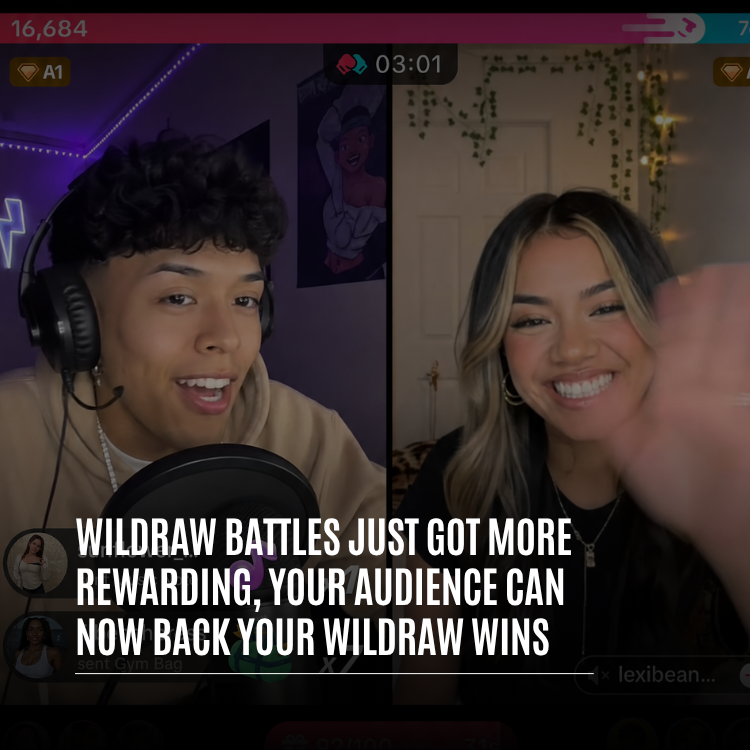
- WildDraw: Battles played, wins, losses, draws, win rate, best score, average and longest battle, time battling, and number of opponents.
The new-versus-returning split is one of the most useful views in the whole dashboard. New supporters tell you your streams are reaching people. Returning supporters tell you those people are sticking around. A healthy live channel needs both.
"I was convinced my audience was mostly college kids like me. The age chart said otherwise, and so did the heatmap. My followers are most active late on weeknights, not on weekends when I'd been posting. I moved my schedule, changed my hooks, and my skipped-quickly number dropped by a lot within a month."
— Marco, creator on Whistlr
Insights in the Whistlr App: Your Professional Dashboard
You don't need a laptop to understand your audience. In the Whistlr app, verified creator and business accounts can open Insights from their Professional Dashboard. The app version is designed for quick checks on the go, with date ranges covering the last 7, 14, 30, or 90 days.
- Views: Total views, accounts reached, views by day, and your top viewers, split between people in your network and people outside it.
- Followers: Growth over time, follows and unfollows, age range and gender breakdowns, and your followers' most active times.
- Interactions: Accounts engaged, interactions by day and by type, and your top fans.
- Monthly recap: A summary of your last 30 days, including views, interactions, follows, unfollows, who followed you, your top fans, and your top viewers.
The app's breakdowns use Whistlr's own language of peers and non-peers, so you can see how much of your reach comes from your network and how much comes from beyond it. The monthly recap is a great habit to build: one screen, once a month, that tells you how your channel moved and who moved it.
"There's a version of analytics that makes creators anxious, refreshing a number all day. We didn't want to build that. We wanted insights that make you calmer because you understand what's happening. Show the real picture, explain where the data comes from, and protect the people behind it. That's what a healthy creator platform owes its creators and their audiences."
— AJ, Founder & CEO, ETAPX
Audience Insights Built With Privacy in Mind
Showing creators more about their audience comes with a responsibility to the people in that audience. Whistlr's insights are designed so creators understand groups, not track individuals.
- Minimum audience thresholds: Demographic charts stay hidden until at least 20 people in that audience list the detail on their profile. Until then, the chart tells you how many have so far.
- Only what people choose to share: Gender, age, and location come from what people list on their own profiles, never from guesswork.
- Short-lived profile visits: Profile visits are kept for 7 days, so viewer insights reflect recent interest and longer periods only include the last week.
- Honest samples: When a chart is based on a sample, like timed watches or your most recent followers, it says so in plain language.
"Every chart in Insights tells you what it's based on. If a number comes from a sample, we say so. If there isn't enough data yet, we tell you how much there is instead of showing you something misleading. Creators make real decisions from these numbers, so the numbers have to be honest about their own limits."
— John Ridge, CTO, ETAPX
How to Read Your Audience Insights: A Weekly Routine
Insights are most useful when you check them on purpose, not constantly. Here's a simple routine many creators use.
- Pick your period: Start with the last 28 days for a steady view, or 7 days if you're testing something new.
- Check Overview: Look at post views, profile views, and engagement compared with the previous period. Note anything that moved a lot.
- Find your best posts: In Content, rank top posts by the metric you care about and open the best performer to see who interacted and how long they watched.
- Look at watch behavior: Compare your watched-30-seconds share with your skipped-quickly share. Decide what to change in your openings.
- Check who's finding you: In Viewers, look at the follower and non-follower split. Rising non-follower visits mean your reach is growing.
- Review net growth: In Followers, check new followers, unfollows, and net, then glance at the most active times heatmap.
- Plan your week: Schedule posts and streams for your brightest heatmap cells, and plan more of the formats your audience actually watches.
Tips for Turning Audience Insights Into Growth
- Make content for the audience you have: Let demographics shape your references, captions, and tone instead of guessing.
- Treat non-followers as an invitation: When non-followers visit or engage, give them a reason to stay with a clear pinned post and consistent content.
- Fix the first three seconds: A high skipped-quickly share is almost always about the opening, not the whole post.
- Watch feedback, not just praise: A rise in hides or not-interested taps is an early warning worth acting on.
- Time your posts and streams: Use the follower heatmap for posts and the Gem heatmap for streams.
- React to every Gem you can: Your Gem response rate is one of the clearest levers for turning new supporters into returning ones.
- Compare like with like: Use the same period length when judging changes, and give a new idea at least a couple of weeks.
Frequently Asked Questions
What are Whistlr creator insights?
Whistlr creator insights are analytics that help creators understand their content and their audience. They include post and profile views, engagement, audience demographics, follower and non-follower breakdowns, most active times, watch behavior, viewer feedback, net follower growth, and live stream and supporter stats, in the Creator Dashboard and the Whistlr app.
Who can see audience insights on Whistlr?
Audience insights are available to verified creator and business accounts. In the Whistlr app, they're in Insights inside the Professional Dashboard. On the web, the full analytics suite is in the Creator Dashboard at whistlr.studio, alongside the Business+ tools.
How does Whistlr know my audience's age, gender, and location?
Demographic insights come from what people choose to list on their own Whistlr profiles. Each chart shows how many people it's based on, and charts stay hidden until at least 20 people in that audience have listed the detail, which protects individual privacy.
What is the best time to post on Whistlr?
The best time to post on Whistlr is when your own followers are most active, and the most active times heatmap shows exactly that by weekday and three-hour block in your time zone. Streamers can also use the best time to go LIVE heatmap, which shows when Gem revenue tends to arrive.
What does watch behavior show in Whistlr insights?
Watch behavior shows how long people stayed on your posts, grouped into watched 30 seconds or more, 10 to 30 seconds, 3 to 10 seconds, and skipped quickly. It's based on watches where time on screen was recorded and appears once at least 20 watches have been timed.
Can I see who unfollowed me on Whistlr?
Insights show how many accounts unfollowed you in a period and your net follower change, which is new followers minus unfollows. Unfollows are counted from when unfollow tracking started, and the count includes followers you removed yourself.
What time periods can I compare in Whistlr analytics?
In the Creator Dashboard, you can view the last 7, 28, 60, or 365 days, or set a custom range, and every change is compared with the previous period of the same length. In the app, Insights cover the last 7, 14, 30, or 90 days, plus a monthly recap.
Is this different from the Creator Insights launched in April?
It builds on it. April's Creator Insights introduced the approach of focusing on healthy growth signals over vanity metrics. This update adds the depth creators asked for, including demographics, follower and non-follower splits, watch behavior, viewer feedback, net growth, and supporter insights.
Your audience isn't a number. It's people with their own habits, schedules, and tastes, and the better you understand them, the better the things you make for them. Open Insights in the Whistlr app or sign in to the Creator Dashboard at whistlr.studio, and start getting to know the people behind your numbers.