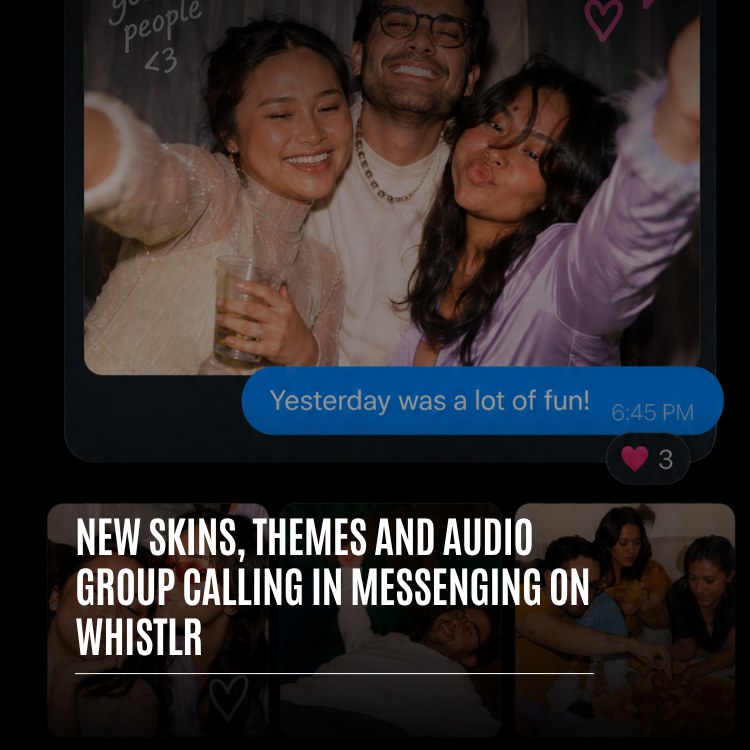
Your group chat is where the real stuff happens: the plans, the inside jokes, the late-night voice notes and the photos from last weekend. So it should look like your group and sound like your group, and sometimes it should be your group, talking live. That's what the latest update to Whistlr messaging is about. Chats now get shared themes with 117 colors, gradients and wallpapers, personal chat bubble skins that make every message you send look like you, custom alert tones for each conversation, and audio rooms that let everyone in a group chat or a 1:1 chat jump into a live voice call without leaving the thread. This guide covers what's new in Whistlr messaging, how chat themes and bubble skins work, how to start and join an audio group call, how ringing and muting work, and tips for getting the most out of all of it.
If you read our earlier PX News piece on giving your inbox more personality, you'll remember the idea: the most personal room in the app shouldn't look like a utility bill. Since then, we've expanded the theme library, added bubble skins and alert tones, and built live audio right into chats. This article walks through all of it in detail, so you can make every conversation look, sound and feel like the people in it.
What's New in Whistlr Messaging
Here's the short version before we go deeper into each feature.
- Chat themes: 117 themes across three styles, Colors, Gradients and Wallpapers, set per conversation and shared by everyone in it.
- Chat bubble skins: More than 30 decorated bubble styles across Suggested, Gaming, Sports, For her and For him, chosen by each person for their own messages.
- Alert tones: A different notification sound for each conversation, so you know who's texting before you look.
- Audio rooms: Live voice calls inside group chats and 1:1 chats, with a ring for everyone in the chat and one tap to join.
- Mute calls: A per-chat switch that stops audio room rings from a conversation without muting its messages.
"Group chats are where friendships actually live now. People plan their weekends there, celebrate there, and get through hard days there. We wanted the chat itself to carry the personality of the group, and we wanted the moment a group goes from typing to talking to take one tap, not a different app."
— AJ, Founder & CEO, ETAPX
Chat Themes on Whistlr: 117 Ways to Make a Conversation Yours
A chat theme changes how an entire conversation looks. Every chat on Whistlr can have its own theme, and the theme is shared, so everyone in that chat sees the same one. Your group chat with your roommates can be bright and loud while your chat with your study group stays calm, and you'll know which is which before you read a single name.
Colors: 17 Solid Themes
Color themes give your conversation a single, confident color. The color shows up in the message bubbles, with a subtle tint across the background. The lineup includes Classic Blue, which is the default for every chat, plus Black, Purple, Pink, Green, Orange, Red, Yellow, Teal, Indigo, Cyan, Emerald, Rose, Amber, Lime, Slate and Violet.
Gradients: 16 Blended Themes
Gradient themes blend colors together for a richer look, again applied to the message bubbles with a soft background tint. They include Sunset, Ocean, Throwback, Cotton Candy, Neon, Fire, Lavender, Aurora, Peachy, Mint, Berry, Tropical, Cosmic, Royal, Cherry and Velvet.
Wallpapers: 84 Photo Backgrounds
Wallpaper themes turn the whole chat background into a full-bleed photo, with a dark overlay on top so messages stay easy to read. Your sent messages keep Whistlr's signature blue bubble on wallpaper themes, which keeps them readable on any image. There are 84 wallpapers, with skies, forests, oceans, mountains, deserts and cities from around the world. A few favorites:
- Night skies: Starry Night, Milky Way, Northern Lights, Deep Space and Aurora Night.
- Nature: Misty Forest, Redwoods, Waterfall, Cherry Blossoms, Snowy Mountains, Lake Reflection and Glacier Ice.
- Cities: New York, NYC Night, San Francisco, Tokyo Neon, London, Paris, Hong Kong and Seattle.
- Destinations: Santorini, Machu Picchu, Grand Canyon, Iceland, Swiss Alps, Amalfi Coast and Mount Fuji.
- Moods: Rainy Window, Smoke & Light, Neon City, Purple Haze, Golden Hour and Storm Clouds.
How Shared Themes Work
A theme belongs to the conversation, not to one person. When anyone in the chat picks a new theme and saves it, the change applies to everyone in that conversation, and Whistlr posts a small message in the chat letting everyone know who changed the theme and what they changed it to. That little note matters. Nobody opens a chat to find it looks completely different with no idea why, and a theme change often becomes its own moment in the conversation.
In group chats, any member can change the theme. Themes are meant to be a shared, playful part of the group, not an admin setting. If your group goes through a new theme every week, that's the feature working exactly as intended.
How to Change Your Chat Theme on Whistlr
- Open the conversation. Go to the group chat or 1:1 chat you want to theme.
- Open chat details. Tap the chat details icon in the header, or swipe left on the chat, to open the chat info screen.
- Tap the palette icon. In the top right of the chat info screen, tap the palette icon labeled Theme.
- Pick a style. The Theme screen slides up with a live preview and three tabs: Colors, Gradients and Wallpapers.
- Preview your choice. Tap any theme and the preview updates instantly, with sample messages so you can see exactly how bubbles and backgrounds will look.
- Save it. Tap Save. The theme applies to the whole conversation, and everyone in the chat sees a message that the theme changed.
Want to go back to the original look? Just pick Classic Blue, the default theme, and save.
Chat Bubble Skins: Make Every Message Look Like You
Themes are shared by the whole chat. Bubble skins are personal. A chat bubble skin decorates the bubbles of the messages you send, and everyone in the conversation sees your messages in your skin. So in a group chat, each friend can have their own look, and you can tell who's talking from the bubble alone.
Skins are chosen per person, per conversation. You can use a playful skin in your best friends' group, a sports skin in your league chat, and keep the plain default in your work chats. Each choice stays with that conversation.
Bubble Skin Collections
There are more than 30 decorated bubble skins, organized into five collections:
- Suggested: Cute, cozy picks like Sunny sponge, Bunny cloud, Bubbly otter, Glam diva, Chill croc, Petal pink, Frog duck, Flexing cat, Cozy capy, Froggy, and Kitty & pup.
- Gaming: Pixel quest, Game on, Neon arena, Dragon loot and Cosmic arcade.
- Sports: Hoops, Golden goal, Gridiron, Match point and Pit stop.
- For her: Coquette bow, Butterfly garden, Tiara, Strawberry milk and Lip gloss.
- For him: Drip, Camo ops, Sneakerhead, Iron gym and Shark bite.
Prefer something simpler? The Default style keeps a clean, undecorated bubble that follows the chat's theme color. You can also pick a plain Blue or Purple bubble, and like the decorated skins, the person you're talking to sees your messages in your chosen color.
How to Choose a Bubble Skin
- Open chat details. In the conversation, tap the chat details icon or swipe left.
- Tap Chat bubble. You'll find it in the chat settings rows on the chat info screen.
- Browse the collections. Swipe through Suggested, Gaming, Sports, For her and For him.
- Pick your skin. Choose a style, and your messages in that chat start showing it for everyone.
Alert Tones: Know Who's Texting Before You Look
Right below Chat bubble on the chat info screen, you'll find Alert tones. Pick a different sound for each conversation, so your group chat, your partner and your family each have a tone you'll recognize from across the room. The options include Default alert, Bounce, Leaky tap, Homely doorbell, Spring days, Business chimes, Cute voice, Singing and Whistlr bells, plus an extended version of Whistlr bells.
The same section also has two switches: Mute messages, which silences message notifications for that chat, and Mute calls, which stops audio room rings from that chat. More on Mute calls in a moment.
"Our group chat has gone through about nine themes in two weeks. Someone switches it to Tokyo Neon at midnight and the whole chat wakes up to the message about it. Then we found the bubble skins and now my best friend's messages are all Cozy capy. It's chaos, and it's the most fun our chat has been in years."
— Jasmine, college student on Whistlr
Audio Group Calling on Whistlr: Meet Audio Rooms
Sometimes typing isn't enough. You need to hear everyone at once to settle the plan, hype the game, or just catch up. Audio rooms bring live voice calls into Whistlr chats. Start one from any group chat or 1:1 chat, everyone in the chat gets a ring, and anyone can join with one tap.
Audio rooms are private to the chat they're started in. They can't be shared outside the conversation, and they don't appear in any public lists, so the only people who can join are the people already in your chat. A group chat on Whistlr can have up to 100 members, so an audio room can bring a big group together in one live conversation.
Why Audio Lives Inside the Chat
We could have built group calling as a separate screen with its own contact list and its own invites. We didn't, because the group already exists. Your group chat already knows who belongs in the conversation, what you were just talking about, and what the group looks like. Putting the audio room inside the chat means there's nothing to set up. No invite links, no picking people one by one, no wondering whether someone got left out. If they're in the chat, they get the ring.
It also means the call becomes part of the chat's history. The message that a room started, the live bar while it runs and the summary row when it ends all sit in the same thread as your messages, so anyone scrolling back later can see when the group got together, even if they missed it.
How to Start an Audio Group Call in a Whistlr Chat
- Open your group chat or 1:1 chat. Audio rooms work in both.
- Tap the phone icon. It's in the chat header, labeled "Start or join audio room."
- Read the quick intro the first time. The first time you use audio rooms, a short explainer covers the basics: talk live right in your chat, it works in 1:1 and group chats, and everyone in the chat gets a ring to join. Tap "Start audio room" to continue or "Not now" to back out.
- Allow microphone access. If you haven't already, Whistlr asks for permission to use your microphone.
- You're live. The room opens, and Whistlr posts a message in the chat that you started an audio room. In group chats, the room is named after the group.
Each chat can have one live audio room at a time. If someone else already started one, tapping the phone icon simply joins the room that's already live, so your group never ends up split across two calls.
Ringing and Notifications
When an audio room starts, everyone else in the chat gets a ring. If you're in the app, a banner drops down from the top of the screen showing who started the room, with Ignore and Join buttons and a ringtone. The ring lasts 30 seconds before the banner closes on its own. If you're not in the app, you'll get a push notification, and tapping it takes you straight into the room if it's still live. If the room has already ended, Whistlr opens the chat and lets you know.
Missed the ring? No problem. While a room is live, a bar sits under the chat header showing "Audio room" with a Join button, who started it and how long it's been going. If you're already in the room, the bar tells you so and gives you a quick way to open it again.
Mute Calls for Busy Chats
Not every chat needs to ring your phone. Turn on Mute calls in a chat's info screen, and audio room rings from that conversation stop, while messages keep coming through as usual. You can still join any live room from the bar under the chat header whenever you want. Rings are also skipped for anyone you've blocked.
"The hard part of audio in chats isn't the audio. It's the ring. Ring too loudly and people mute the whole chat. Ring too quietly and nobody shows up. We landed on a 30-second ring, a live bar in the chat for anyone who missed it, and a per-chat Mute calls switch, so every person decides how much a chat is allowed to interrupt them."
— John Ridge, CTO, ETAPX
Inside an Audio Room: Controls and Etiquette
Everyone Gets a Seat
Audio rooms in chats are built like a call, not a stage. Everyone who joins gets a seat and can talk. There's no raising your hand or waiting to be invited up. To keep large groups from turning into noise the second the room opens, people joining a group chat room start muted and tap to unmute when they're ready to talk. In 1:1 chats, you join unmuted, just like picking up a call.
Controls
- Mute and Unmute: One tap at the bottom of the room.
- Comments: A "Type..." box lets you drop a message into the room without talking, perfect for links or when you're somewhere quiet.
- People in the room: See who's joined from the More menu.
- Minimize: Swipe the room away to shrink it to a mini bar and keep chatting, scrolling or checking other threads without leaving the call.
- Leave or End: Members can leave and rejoin from the chat while the room is live. The person who started the room can end it for everyone.
Ending a Room
If you started the room, leaving ends it for everyone in the chat, and Whistlr asks you to confirm before it does. Everyone else can leave without ending the room and rejoin anytime while it's live. When a room ends, the chat shows a summary row with how long the room lasted and when it ended, so the conversation keeps a record of the moment the group got together.
One call at a time: starting an audio room replaces any 1:1 call you already have going, so you're never juggling two live conversations at once.
When You Can't Start an Audio Room
- Pending message requests: If a conversation is still a message request, you'll need to accept it before starting an audio room.
- Blocked users: Audio rooms aren't available with people you've blocked or who have blocked you.
- Offline: You need a connection to start or join a room.
- Other chat types: Audio rooms are built for group chats and 1:1 chats.
Tips for Better Themes, Skins and Audio Rooms
- Theme by vibe. Give each group chat a theme that matches its energy, so you can spot it in your chat list at a glance.
- Use wallpapers for big moments. Switch to a destination wallpaper before a trip or a city wallpaper when the group's planning a night out.
- Pick a skin per chat. Your bubble skin can be different in every conversation, so match it to the crowd.
- Set alert tones for your top chats. A unique tone for your closest people means you'll never miss the messages that matter most.
- Unmute when you talk. In group rooms, stay muted while you listen and unmute when it's your turn, especially in big chats.
- Use Mute calls instead of muting the whole chat. Keep messages flowing while stopping rings from chats that start rooms often.
- Minimize instead of leaving. Need to check something? Swipe the room down to a mini bar so you don't drop off the call.
"Themes, skins, tones and audio rooms all answer the same question: what does this group feel like? A chat with your best friends should feel different from a chat with your team. Now it can look different, sound different, and when you need it, turn into a live conversation without anyone opening another app."
— Renata Osei, VP of Product, ETAPX
Frequently Asked Questions
How do I change the chat theme on Whistlr?
Open the conversation, tap the chat details icon in the header or swipe left, then tap the palette icon labeled Theme. Choose from the Colors, Gradients or Wallpapers tabs, check the live preview, and tap Save. The theme applies to everyone in the conversation.
How many chat themes does Whistlr have?
Whistlr's iOS app has 117 chat themes: 17 solid colors, 16 gradients and 84 photo wallpapers. Classic Blue is the default theme for every chat.
Can everyone in the chat see my theme?
Yes. Chat themes are shared by the whole conversation, so everyone in the chat sees the same theme. When someone changes it, Whistlr posts a message in the chat saying who changed the theme and what they picked.
What's the difference between a chat theme and a bubble skin?
A chat theme changes the look of the whole conversation for everyone in it. A bubble skin decorates only the messages you send, and everyone in the chat sees your messages in your skin. Themes are shared by the chat, and skins are chosen by each person.
How do I start a group audio call on Whistlr?
Open the group chat and tap the phone icon in the header labeled "Start or join audio room." Allow microphone access if asked, and the room goes live. Everyone in the chat gets a ring to join, and a live bar under the chat header lets anyone join later while the room is running.
Do audio rooms work in 1:1 chats?
Yes. Audio rooms work in both group chats and 1:1 chats. In 1:1 chats you join unmuted, like a regular call, while in group chats you join muted and tap to unmute when you want to talk.
Can I stop audio room rings from a group chat?
Yes. Turn on Mute calls in that chat's info screen. Audio room rings from that conversation stop, but your messages keep arriving normally, and you can still join any live room from the bar under the chat header.
Who can join an audio room in a Whistlr chat?
Only people in that chat. Audio rooms are private to the conversation they're started in, can't be shared outside it, and don't appear in public lists. Each chat can have one live room at a time.
Your chats already have personality. Now they can show it, and when typing isn't enough, they can talk. Open your favorite group chat, pick a theme, choose your bubble skin, and tap the phone icon to bring everyone into the room.