Going live used to feel like something reserved for full-time streamers with ring lights, capture cards, and a schedule posted in their bio. On Whistlr, it isn't. Whistlr live streaming is open to every user, and it's built to be as casual as you want it to be: point your phone at whatever you're doing, give it a title, and tap Start. No follower minimum, no application, and no special account needed to broadcast. This guide walks through everything about your first stream, from the two-minute setup and the stream info that helps people find you, to what you can do while you're live, how to stay comfortable on camera, and what happens to your stream once it ends.
Whether you want to show friends the view from a hike, chat through your morning coffee, play music in your room, or test the waters before building something bigger, the goal is the same. Your first stream should take less effort than writing a long post. Everything below is designed around that idea, and every tool scales up with you if live turns into something you do every week.
Whistlr Live Streaming Is Now Open to Every User
The biggest change is simple: anyone with a Whistlr account can go live. Live isn't hidden behind a creator upgrade or a follower count. It sits right in the Create menu next to posts, stories, and Minis, with a LIVE option that invites you to "Go LIVE with your audience." Tap it, and you're on the stage, the same streamlined go-live screen creators use, with your camera preview already running behind it.
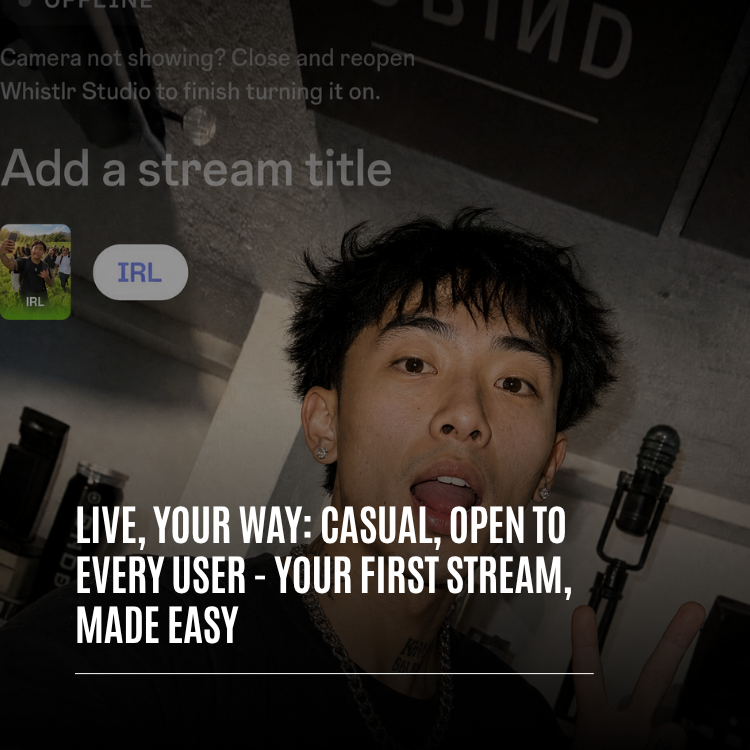
That stage is deliberately short on decisions. You see your camera, a spot to add a stream title, your category, and a Start button. There's a switch between Stream Mobile, for going live straight from your phone, and Stream Desktop, for creators who want to broadcast from a computer. If you just want to talk to people, you never need to touch anything else.
Casual Is the Point
Whistlr is built around real relationships, and live is one of the most natural ways to spend time with the people you know. A live stream doesn't have to be a production. It can be ten minutes of answering questions while you cook, a walk through a street market, or a late-night hangout with whoever shows up. The friend-first way Whistlr surfaces content means your first viewers are usually people who already know you, which makes going live for the first time feel a lot less like stepping onto a stage and a lot more like opening the door.
"We wanted going live to feel as normal as posting a photo. You shouldn't need permission, a big audience, or a studio to share a moment as it happens. Open the camera, say hi, and let the people who care about you show up. That's what live on Whistlr is for, and it's open to everyone."
— AJ, Founder & CEO, ETAPX
What You Need Before Your First Live Stream
The list is short on purpose. Here's everything that has to be in place before you go live on Whistlr for the first time.
- A Whistlr account: Any account can broadcast. There's no follower minimum and no separate creator sign-up for going live.
- Camera and microphone access: Whistlr asks for both the first time you open the stage. If you declined earlier, the stage shows a Camera access card with a shortcut to Settings so you can turn it on.
- A stream title: Every stream needs a title before it starts. If you tap Start without one, Whistlr opens the stream info editor so you can add it first.
- A decent connection: Wi-Fi or a strong mobile signal keeps your video smooth. You don't need anything special, but a stable connection makes a better first impression.
That's it. No ring light, no external microphone, and no streaming software. Those can come later if you want them.
How to Go Live on Whistlr: Your First Stream, Step by Step
Here's the full path from opening the app to being on air. Most people finish it in a couple of minutes the first time and in seconds after that.
- Open Create and choose LIVE. Tap the Create button in the Whistlr app and swipe to the LIVE option. Tap to open the stage.
- Allow your camera and microphone. If this is your first time, grant camera and microphone access when Whistlr asks. Your camera preview appears behind the stage.
- Stay on Stream Mobile. For a phone stream, leave the switch on Stream Mobile. You'll go live with the camera you're looking at.
- Add your stream title. Tap "Add a stream title" and write what you're doing. The editor asks, "What are you streaming today?" and titles can be up to 140 characters.
- Pick a category. Tap the category to browse or search. New phone streams start on IRL, which fits most casual streams, but you can switch to Just Chatting, Music, Art, Fitness & Health, Food & Drink, Travel & Outdoors, and many more.
- Add tags and details if you like. Tags, language, content labels, and a Go Live Notification are all optional. More on each below.
- Tap Start. Whistlr secures your room and puts you on air. Say hello, and you're live.
When you're done, end the stream from the live controls. Whistlr asks you to confirm before it ends, so a stray tap won't cut your stream short.
Setting Up Your Stream Info So the Right People Find You
The stream info editor is where you describe your broadcast. None of it is required except the title, but a few seconds here make a real difference in who finds your stream and how they feel when they arrive. You can open it from the stage before you start by tapping your title or category.
Title: Up to 140 Characters
Your title is the first thing viewers see. A good title says what's happening right now in plain words: "Painting a mural on my garage wall," "Sunday reset and catch-up chat," or "First stream, ask me anything." Specific beats clever. People decide in a second whether to tap in, and a clear title helps the people who'd enjoy your stream recognize it.
Category: Where Your Stream Belongs
Categories group live streams so viewers can browse by what they're in the mood for. The editor shows a list of popular categories with cover art, and you can search for anything more specific. IRL is the default for camera streams because it fits real-life moments of every kind. All content needs to follow Whistlr's guidelines and be categorized accurately, so pick the category that honestly matches what viewers will see.
Tags: Up to 10 Short Keywords
Tags add extra detail that a category can't. You can add up to 10 tags per stream, each up to 25 characters, with no spaces or special characters. Streams start with a language tag, and you can add your own, like a city, a hobby, a skill level, or the vibe you're going for. Tags help viewers with specific interests find you without you needing a huge following.
Content Classification and Language
If your stream includes material that isn't suitable for every viewer, you're required to disclose it. The editor's Content Classification section lets you select labels such as mature-rated games, significant profanity, gambling, or politics and sensitive social issues. You can also set the language you'll be speaking, which helps viewers find streams they can follow along with. Most casual streams won't need any labels at all, but it's good to know where they are.
Go Live Notification: One Message to Your Followers
The Go Live Notification lets you send your followers a short note when your stream starts, up to 140 characters. You can only send one notification per stream, so make it count: tell people what's happening and why they should drop in. "Going live from the beach, come hang" works better than a generic "I'm live."
Stream Mobile or Stream Desktop: Choose How You Broadcast
The stage gives you two ways to go live. You can switch between them before you start, and nothing about your account changes either way.
Stream Mobile: Your Phone Is the Whole Setup
Stream Mobile is the fastest way to go live. Your phone's camera and microphone are your broadcast, and the live controls sit right on top of the video. You can flip between the front and rear cameras mid-stream, add effects, and take your viewers with you as you move around. For first streams, casual hangouts, and anything happening out in the world, this is the mode to use.
Stream Desktop: Bring OBS Studio or Your Favorite Streaming App
If you already stream from a computer, or want to try, Stream Desktop connects your setup to Whistlr. It works with OBS Studio and other streaming apps that support RTMP. The stage shows your Server URL and Stream Key, along with a quick setup guide.
- Open your streaming app. Use whatever broadcasting software you're comfortable with.
- Set the service to Custom. In your app's stream settings, choose a custom server.
- Paste your server and key. Copy the Server URL and Stream Key from the stage into your app. Copy the whole key, because one missing character means no signal gets through.
- Hit Start Streaming. Whistlr picks up your signal and shows a preview. When everything looks right, tap "I'm set up, let's go."
While you set up, a signal coach tells you exactly what's happening, from "Waiting for your stream" to "Signal received." If your stream arrives but the preview can't play it, the coach suggests setting your encoder to H.264 with the Main or Baseline profile. If your app stops sending mid-stream, you stay live on Whistlr while you hit Start Streaming again. Your stream key stays private, and if it ever leaks you can reset it from the Stream key panel, which stops the old key from working.
"A first stream should never fail because of setup. On a phone, there's nothing to configure. On a computer, the stage tells you what it sees in plain language, whether that's no signal yet, a signal it can't decode, or a stream that's ready to go. You shouldn't need to search forums to get on air."
— John Ridge, CTO, ETAPX
What You Can Do While You're Live
Once you're on air, everything lives on one screen. You don't need to learn it all before your first stream. Most people start with just chatting and pick up the rest naturally.
Chat With Your Viewers
Comments scroll over your video in real time, and new viewers show up as they join. Reply to people by name, and pin a comment to keep an important message at the top of the chat, like what you're doing today or a question you want everyone to weigh in on. Viewers can send likes, which float up the screen as hearts, so you can feel the room even when people aren't typing.
Questions and Polls
Questions give viewers a way to ask something without it getting lost in a busy chat. They collect in a Questions list that only you can see, and you can put one on screen to answer it out loud. Polls let you ask your audience to decide something, like which song to play next or what to cook, and everyone watching can vote. Both are great tools for a first stream, because they give you something to talk about when you're not sure what to say next.
Bring Guests On Screen
Live is more fun with friends. Viewers can request to go live with you, and you can invite people who are watching or people you follow. Up to eight guests can join you on screen at once, so a stream can be a one-on-one conversation or a full panel. You decide who joins, and you can remove a guest whenever you want. If you'd rather not get requests, you can turn them off.
Share a Photo
Want to show something you can't point your camera at? You can share a photo from your library during a stream. Viewers see it with you in a small window on top, which is perfect for showing a sketch, a recipe, a screenshot, or a throwback picture you're telling a story about.
If You Need to Step Away
Life happens during live streams. If you leave the Whistlr app while you're live, your camera turns off and viewers see "Live video paused" until you come back. Your stream doesn't vanish, and your audience knows you haven't gone anywhere.
Staying Comfortable on Camera
Going live for the first time can feel exposed, so Whistlr gives every host real control over their space from the very first stream. You don't need to be a big creator to use these tools, and you can set them up before you need them.
- Comment controls: Add hidden words, and any comment containing them is hidden for everyone watching. You can also mute a specific person's comments for the rest of the stream.
- Commenting on or off: Turn commenting off entirely if you want a quieter broadcast, and turn it back on anytime.
- Moderators: Make a trusted friend a moderator so they can help hide comments and manage people while you focus on the stream.
- Remove and block: Remove someone from your live right away, or block them so they can't find your profile, posts, or live videos.
These tools are there so your first stream can be about the fun part. If you want the full breakdown, our guide to advanced hosting tools covers every control in detail.
"I put off going live for months because I thought I needed a whole setup. My first stream was literally me repotting plants on my balcony with my phone leaning on a watering can. Twelve people showed up, mostly friends, and someone asked a question I talked about for twenty minutes. Now I do it every Sunday."
— Priya, plant and home creator on Whistlr
When Your Stream Ends: Replays, Recaps, and Sharing
A stream doesn't disappear the moment you stop. When you end your broadcast, Whistlr shows a wrap-up screen with how long you were live and your peak number of viewers, so you get an honest sense of how it went.
- Replay saved to your profile: Your live replay is saved to your profile automatically, so people who missed it can still watch. You can delete it from the post at any time.
- Download your replay: Save the replay to your phone's Photos to keep it, edit highlights, or turn the best moments into Minis.
- Share the replay: Send the replay to friends or share it right from the wrap-up screen to bring in people who weren't there.
- Very short streams: If a stream is too short, Whistlr won't save a replay. That way an accidental start doesn't end up on your profile.
Replays are one of the best reasons to go live even when only a few people are watching. A small first stream still becomes a post on your profile that keeps working for you long after it ends.
Going Further: Live Havens, Gems, and Live Shopping
Once you're comfortable, live on Whistlr connects to the rest of the platform in ways that help a stream reach further and, if you want, earn money.
Put Your Stream on the Map With a Live Haven
If you're streaming from somewhere worth visiting, like a pop-up, a game, or a local event, you can post your running stream as a Live Haven at your current location. It shows up on Nearby while you're live and ends with your stream, so people around you can find what's happening and tap in. It's one of the easiest ways to turn a casual stream into a local moment.
Earning With Gems and Live Shopping
Going live is free and open to everyone. Earning money from a stream is a step you take when you're ready. Monetization features like WTC Gems and Live Shopping unlock once you complete verification and Stripe Connect onboarding, the same setup that powers earnings across Whistlr. After that, viewers can send Gems during your stream, you can set a Gems goal that everyone can see filling up, and you can see your top gifters. Verified business hosts can also pin a product from their Whistlr GO store so viewers can shop it while you're live.
There's no pressure to turn any of this on. Plenty of people go live just to hang out, and that's exactly what live on Whistlr is designed for. The earning tools are there for the moment your casual stream starts to feel like something bigger.
Tips for a Great First Live Stream
You don't need to be polished. You need to be present. A few simple habits make first streams feel easier and help people stick around.
- Tell people ahead of time. Post a story or a quick note saying when you'll be live, then use your Go Live Notification when you start.
- Write a specific title. Say exactly what you're doing. "Baking my grandma's bread recipe" pulls in more people than "Live now."
- Have a loose plan. Pick one activity or topic. Something to do with your hands takes the pressure off talking the whole time.
- Greet people by name. When someone joins or comments, say hi. It's the simplest way to make a small stream feel warm.
- Use questions and polls. If the conversation stalls, ask your viewers to decide something or answer what they've asked.
- Set your comment controls first. Add a few hidden words before you start so you never have to think about it mid-stream.
- Check your light and sound. Face a window or a lamp, and stay close enough to your phone that people can hear you.
- Don't judge it by the numbers. A first stream with five viewers who stayed the whole time is a great first stream.
"Most people's first stream is small, and that's a good thing. It's the best time to find your rhythm, with people who already like you. We built every part of the flow so that first try is easy, and so that if you love it, the same tools grow with you into weekly shows, guests, Gems, and more."
— Renata Osei, VP of Product, ETAPX
Frequently Asked Questions
Who can go live on Whistlr?
Anyone with a Whistlr account can go live. Whistlr live streaming is open to every user, with no follower minimum and no separate creator application. Open the Create menu, choose LIVE, add a title, and tap Start.
How do I start a live stream on Whistlr?
Tap Create in the Whistlr app, swipe to LIVE, and allow camera and microphone access. Add a stream title, pick a category, and tap Start. Your stream begins on Stream Mobile using your phone's camera, or you can switch to Stream Desktop to broadcast from a computer.
Do I need special equipment to stream on Whistlr?
No. Your phone is all you need. Stream Mobile uses your phone's camera and microphone, and the live controls sit right on top of your video. If you want a more advanced setup later, Stream Desktop works with OBS Studio and other RTMP streaming apps.
How long can my Whistlr stream title be?
Stream titles can be up to 140 characters. A title is required before you go live, so if you tap Start without one, Whistlr opens the stream info editor. You can also add up to 10 tags of up to 25 characters each.
Can I stream to Whistlr with OBS Studio?
Yes. Switch the stage to Stream Desktop, copy your Server URL and Stream Key, set your streaming app's service to Custom, and paste them in. Hit Start Streaming, wait for Whistlr's signal coach to confirm your signal, and tap "I'm set up, let's go."
What happens to my live stream after it ends?
Your live replay is saved to your profile automatically, and you can delete it from the post at any time. The wrap-up screen shows how long you were live and your peak viewers, and lets you download the replay to Photos or share it. Very short streams don't save a replay.
Can I bring friends onto my Whistlr live stream?
Yes. Viewers can request to join you, and you can invite people who are watching or people you follow. Up to eight guests can be on screen with you at once, and you can remove a guest at any time or turn requests off entirely.
Can I make money from live streams on Whistlr?
Yes, once you complete verification and Stripe Connect onboarding. Viewers can then send WTC Gems during your streams, you can set a Gems goal, and verified business hosts can pin Whistlr GO products for Live Shopping. Going live itself is always free.
Your first stream doesn't need a plan, an audience, or a setup. It just needs you. Open Whistlr, tap Create, choose LIVE, and say hello to the people who want to see what you're up to.