Every creator business comes down to three jobs: grow an audience, show up for it, and earn a living from it. Most creators handle those jobs with a patchwork of tools, like one app for analytics, another for going live, a spreadsheet for income, and a notes app holding everything else together. Creator Studio was built to replace that patchwork. It's Whistlr's professional home for creators, living at whistlr.studio, and every part of it is designed around those three jobs. This guide explains what Creator Studio is, how it helps you grow, stream, and earn, how the pieces connect, and how to get started, whether you're about to go live for the first time or already running a creator business with a team behind it.
If you've followed PX News for a while, some of this will be familiar. Creator Studio launched inside the Whistlr app in December 2025, moved to its own standalone platform at whistlr.studio, and has picked up streaming, monetization, and reporting upgrades since. This article pulls all of that into one place: a complete picture of what Creator Studio does today and why it's built the way it is.
What Is Creator Studio?
Creator Studio is Whistlr's professional dashboard for creators who treat their presence on the platform as a real business. It brings analytics, audience insights, content scheduling, a live-streaming command center, and monetization tools into one place, fully connected to your Whistlr account. It's the business layer that sits next to the Whistlr app where you post and the Whistlr Studio editor where you make content.
The simplest way to think about it: Whistlr Studio is for making something, and Creator Studio is for running something. When you're trimming a clip or adding captions, you're in Whistlr Studio. When you're checking what performed, planning your week, going live, or tracking what you earned, you're in Creator Studio. The two hand off cleanly, and most active creators use both every week.
Creator Studio started inside the Whistlr app, but creators used it like business software, opening it on purpose, often at the start of a session, to think about their channel. That's why it moved to its own home at whistlr.studio, with a calmer interface built for longer planning sessions and room for tools that wouldn't fit inside a social app. Your Whistlr creator account signs you straight in, and your data, schedule, and settings are all there.
"We didn't build Creator Studio to be a feature. We built it to be the place a creator runs their business from. Grow, stream, earn: those are the three things every creator is trying to do, and we wanted each one to have real tools behind it, all talking to each other, in one place that takes the work seriously."
— AJ, Founder & CEO, ETAPX
Grow: Analytics, Audience Insights, and Scheduling
Growth is the first job, and it's where most creators feel most in the dark. Posting consistently and hoping something catches on isn't a strategy. Creator Studio's growth tools are built to answer the questions that actually move a channel forward: what's working, who's watching, and what should I make next?
Analytics That Tell You What to Do Next
Creator Studio's analytics go well beyond view counts. You get performance over time, breakdowns by post type, retention curves that show where attention rises and falls inside each post or stream, engagement peaks, and date-range comparisons that let you put this month next to last month. The goal is to answer "is my work connecting?" rather than "how big is the number?", which keeps creators focused on lasting growth instead of chasing one-off spikes.
- Retention mapping: See exactly where viewers stay and where they drop off, so you can fix pacing, tighten intros, and structure content around what holds attention.
- Audience growth signals: Learn which content brings in new followers and which content deepens loyalty among the people already following you. Those are two different jobs, and both matter.
- Best-time guidance: Scheduling suggestions based on when your audience is actually most active, not generic advice about when "everyone" is online.
- Revenue attribution: Tie earnings back to the posts, streams, and subscriptions that produced them, so growth and income show up in the same picture.
Audience Insights: Knowing Who You're Making Things For
Numbers about content are only half the story. The other half is the people behind them. Creator Studio's audience insights help you understand who follows you, when they show up, and how they engage, so you can make content for your real audience instead of an imagined one. Because Whistlr is built around real relationships, and the friend-first approach to discovery sends reach through people who actually know each other, understanding your audience's shape matters here. Growth on Whistlr tends to come from trust, not tricks.
Scheduling: Turning Good Intentions Into a Calendar
Consistency is one of the strongest growth levers a creator has, and it's also one of the easiest to let slip. Creator Studio's content scheduler lets you plan posts and streams ahead of time, attach pinned posts, and set up follower notifications and stream reminders so your audience knows when to show up and why. Creators who batch their planning, mapping out a full week in one sitting, free up their best creative hours for the actual work.
Stream: A Command Center for Going Live
Live streaming is where community, feedback, and income come together. It's the most immediate connection a creator can have with an audience, and it's often where the strongest relationships and the most Gem support happen. Creator Studio's streaming tools cover the whole life of a broadcast: before, during, and after.
Before You Go Live: Setup and Pre-Flight Checks
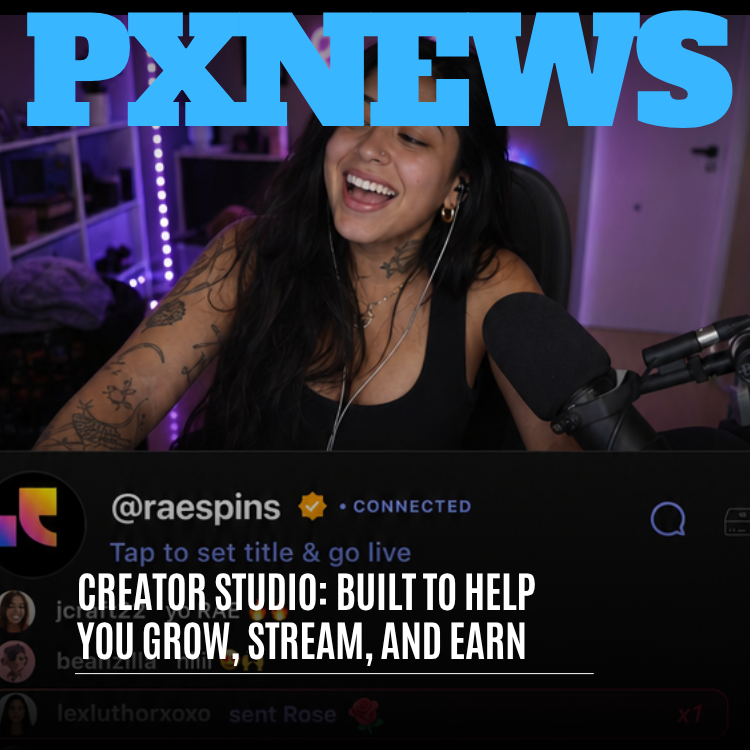
Going live starts with a guided setup that walks you through every decision that matters: title, category, who can watch, monetization options, and visual settings. You can make a stream public, private, or limited to specific circles, which fits Whistlr's approach of letting you choose who each moment is for. Before the audience arrives, Creator Studio runs pre-flight checks on your connection and stream health, so bandwidth problems show up in a ten-second test instead of in front of a live chat. When everything checks out, you tap to set your title and go live.
Bring Your Own Setup With OBS Studio
Creators who've built a professional setup don't have to give it up. Creator Studio works with OBS Studio, so your scenes, overlays, filters, and plugins carry over. You connect your existing setup, authenticate your Whistlr account, and point your broadcast at Whistlr. Streamers who've spent years perfecting their production can bring all of it with them, and creators who are just starting can keep things simple and still get a guided path to their first stream.
During the Stream: One Control Surface
Once you're live, chat, replies, overlays, product pins, and moderation tools all sit on one control surface instead of scattered menus. You can respond to viewers, pin important messages, highlight contributions, trigger overlays, and moderate in real time without leaving the broadcast view. A real-time Gems panel shows support as it arrives, including the pace and pattern of Gems through a segment, not just a running total, so the money side of the stream becomes part of reading the room. When a viewer sends a Gem, the moment shows up in chat for everyone to see.
After the Stream: Replays, Clips, and Per-Stream Reports
When a stream ends, its value doesn't. Streams are replay-ready by default, so you can publish replays and clips that flow back into the feed and keep bringing in new viewers. Post-stream insights show watch time, replay views, engagement peaks, and retention. Per-stream reports show exactly how that one broadcast did financially, compared with your typical stream. That's how creators learn which formats, times, and collaborations actually work, instead of relying on a feeling.
"The pre-flight check alone saved me from so many embarrassing starts. But what really changed things was the per-stream report. I used to just have a vibe about which nights went well. Now I know my Friday late sessions pull the most Gems and my Tuesday chill streams bring the most new followers, so I plan them totally differently."
— Rae, live-stream creator on Whistlr
Earn: Every Way to Get Paid, in One Place
Earning is the third job, and it's where Creator Studio does the most to turn a following into a real income. Whistlr's monetization stack was built around diversification, meaning several independent revenue streams that support each other so no single change can wipe out a creator's income. Creator Studio is where all of those streams are set up, managed, and tracked.
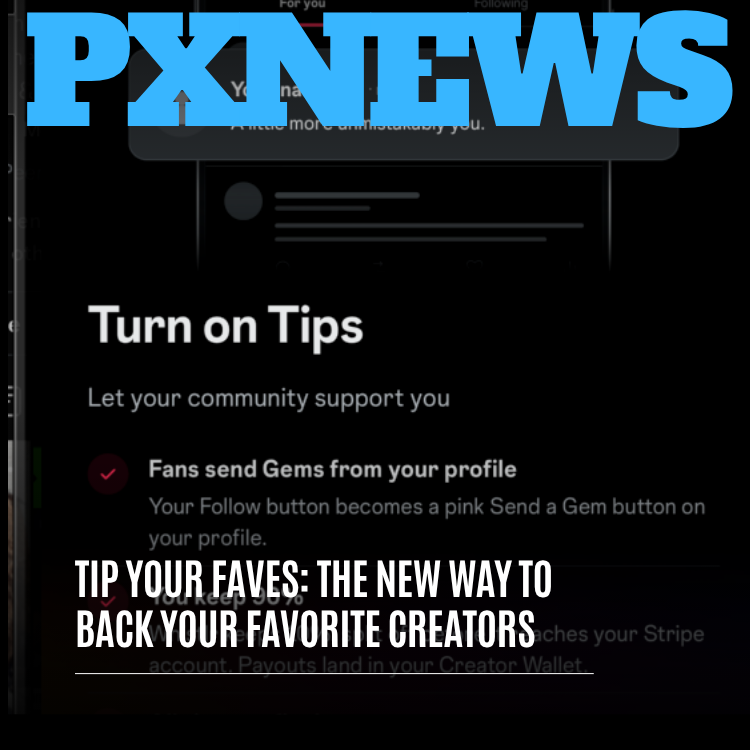
- WTC Gems: Viewers buy Gems and send them during streams and on content. In Creator Studio's WTC tab, you can rename your Gem tiers to fit your channel, set your own prices, set Gem goals, and see your top supporters.
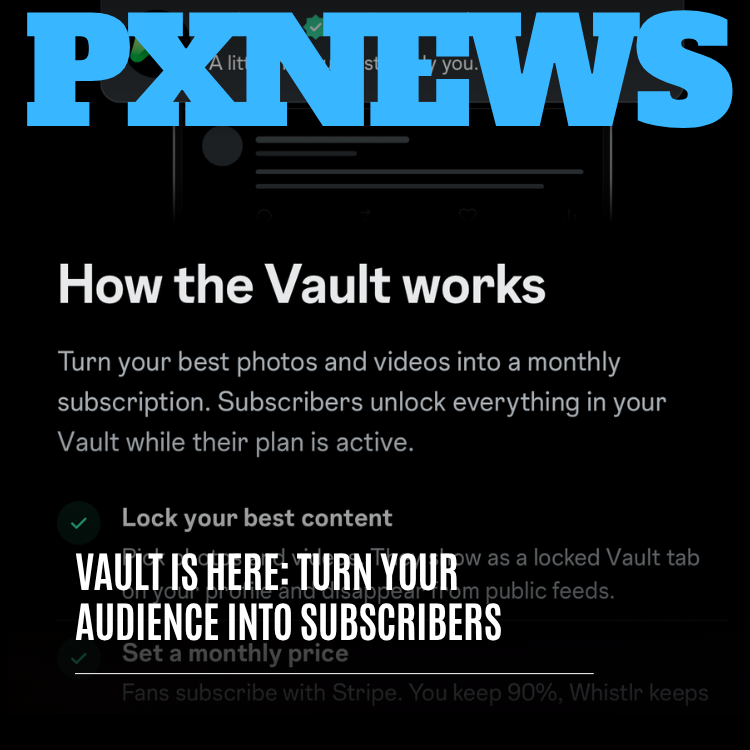
- Subscriptions: Recurring monthly support from your most committed fans, with tiers and benefits you define, like subscriber-only posts and streams, early access, and exclusive communities.
- Ads: Whistlr's native advertising ecosystem contributes to creator earnings. Creator Studio lets you set brand-safety and category preferences for ads around your content and see what ads add to your income.
- Storefronts and Live Shopping: Sell products through your own storefront and spotlight them mid-stream with Live Shopping, when audience attention and intent to buy are at their highest.
- Brand partnerships: Manage partnership activity alongside everything else, backed by the kind of performance reporting brands expect to see.
A Unified View of Your Income
All of those streams roll up into a single earnings view. You can see total revenue across any period, how it splits between streams, and which streams are growing or cooling off. Instead of adding up your income by hand from five places, you open one dashboard and see the whole business. It's also the fastest way to spot how your streams affect each other, like a big streaming week lifting subscriptions, or a run of strong Minis moving ad earnings.
Getting Your Money: Instant and Business Withdrawals
Earnings from every stream collect in the Stripe Connect account you set up during onboarding, and you choose how and when to withdraw. An instant withdrawal moves funds toward you right away for a small convenience fee shown before you confirm, which is useful when something urgent comes up. A business withdrawal follows Whistlr's standard payout schedule at no extra cost, which suits income you've already budgeted around. You pick for each withdrawal, and most creators use both at different times of the year.
"A creator who understands their numbers, controls their monetization, and runs a real content calendar is far less fragile than one waiting on a single viral moment. Creator Studio is built to make that kind of durable business the default on Whistlr, not a privilege reserved for people who can afford a manager and a media team."
— Renata Osei, VP of Product, ETAPX
How Grow, Stream, and Earn Work Together
The three jobs aren't separate, and Creator Studio wasn't built as three separate tools. Each one feeds the others, and the point of having them in one place is that the effort you put into one pays off across all three. Here's what a typical week looks like for a creator using the whole loop.
- Review before you create. Start the week in analytics. Look at last week's retention curves and engagement peaks and let them shape what you make next.
- Plan and schedule. Use the scheduler to map out posts and streams, time them to when your audience is most active, and set up stream reminders and pinned posts.
- Make the content. Shoot and edit in Whistlr Studio, then publish your Minis and posts to the feed.
- Go live. Run the pre-flight check, set up any Gem goals or Live Shopping moments, and broadcast from the unified control surface.
- Learn from the stream. Open the per-stream report, see what worked, and publish the best clips and replays back into the feed.
- Check the business. Look at the unified earnings view to see how the week went across Gems, subscriptions, ads, and sales, then start the loop again with better information than last time.
Notice how each step sets up the next one. Growth tools tell you what to stream. Streams create the moments that earn and the clips that grow your audience. Earnings data shows which kinds of content hold up the business. Over time, that loop compounds, and a creator using it is making decisions on real evidence instead of hunches.
Who Creator Studio Is For
Creator Studio is built to scale with you, and it looks a little different at each stage of a creator's journey.
- New creators: A guided starting point with simple analytics, easy scheduling, a forgiving path to your first live stream, and clear first steps toward monetization. There's no follower minimum for Creator Studio's core analytics, scheduling, and streaming tools.
- Growing creators: Deeper insights, steady publishing routines, and the subscription tools that turn a loyal core audience into recurring income.
- Established creators and teams: Collaboration tools and role-based permissions so you can bring in editors or moderators, plus the unified earnings view and per-stream reporting that a full-time business depends on.
- Business accounts: Creator workflows combined with brand-safety controls and partnership tools for larger campaigns.
One thing Creator Studio is not: required for casual posting. If you share a Mini now and then for fun, the Whistlr app and Whistlr Studio's editing tools cover everything you need. Creator Studio becomes useful when you have something to analyze, an audience worth planning around, and a reason to track what you earn.
How to Get Started With Creator Studio
Getting set up takes a few minutes, and nothing about it costs money.
- Upgrade to a Creator account. Inside the Whistlr app, upgrade to a Creator account. It's free, and it's the step that unlocks Creator Studio.
- Sign in at whistlr.studio. Open Creator Studio in any browser and sign in with your Whistlr account. There's no separate login and no second account.
- Complete your creator profile. Fill in your profile so Creator Studio can tailor your dashboard and so your audience knows who they're supporting.
- Connect your streaming setup. If you use OBS Studio, connect it now. If you'll stream from your phone, the guided go-live flow will handle setup the first time you broadcast.
- Set up monetization when you're ready. Monetization features require verification and Stripe Connect onboarding. Once that's done, you can set up Gem tiers, subscriptions, ad preferences, and your storefront.
- Make Creator Studio a weekly habit. Block out a regular planning session. The creators who get the most from Creator Studio treat it as a routine, not an occasional check-in.
Tips From Creators Who Use It Every Week
The tools do a lot of the work, but a few habits separate creators who get real value from Creator Studio from creators who just open it now and then.
- Start in analytics, not the editor. Let data from your last few posts shape what you make next, rather than deciding first and checking results later.
- Run the pre-flight check every time. A ten-second connection test beats finding a bandwidth problem in front of a live audience.
- Plan your money moments. Decide ahead of time when you'll set a Gem goal or pin a product, so it feels natural rather than sudden.
- Protect your brand early. Set brand-safety and ad preferences before you scale, not after a bad match.
- Diversify gradually. Add revenue streams as your audience grows instead of turning everything on at once.
- Bring in help when you're ready. Use collaboration tools to hand off editing or moderation so you can stay focused on creating.
"Everything in Creator Studio is designed so the tool gets out of the way at the moment you need to be present. Setup happens before the audience arrives. The numbers you need mid-stream are already on screen. The report is waiting when you're done. The less time a creator spends fighting the tool, the more time they spend on the thing their audience came for."
— John Ridge, CTO, ETAPX
Frequently Asked Questions
What is Creator Studio on Whistlr?
Creator Studio is Whistlr's professional dashboard for creators, available at whistlr.studio. It brings analytics, audience insights, content scheduling, a live-streaming command center, and monetization tools, including WTC Gems, subscriptions, ads, Storefronts, and Live Shopping, into one place connected to your Whistlr account. It's built to help creators grow their audience, stream professionally, and earn a sustainable income.
Is Creator Studio free to use?
Yes. You unlock Creator Studio by upgrading to a Creator account in the Whistlr app, which is free. Core analytics, scheduling, and streaming tools are available without a follower minimum. Monetization features require completing verification and Stripe Connect onboarding, not reaching a specific audience size.
How do I go live using Creator Studio?
Creator Studio walks you through a guided go-live flow: set your title and category, choose who can watch, turn on monetization, and run a pre-flight connection check. You can stream with OBS Studio or go live from your phone. During the broadcast, chat, overlays, product pins, moderation, and real-time Gems all sit on one control surface.
How do creators make money with Creator Studio?
Creators can earn through WTC Gems sent during streams and on content, subscriptions, ads, Storefront sales, Live Shopping, and brand partnerships. Creator Studio lets you set up and manage each stream and shows total earnings in one unified view. Earnings collect in your connected Stripe account, and you can withdraw instantly for a small fee or on the standard payout schedule at no extra cost.
What's the difference between Creator Studio and Whistlr Studio?
Whistlr Studio is the creative toolkit for making content, built around the AI video editor with automatic captions, AI voiceover, and a multi-track timeline. Creator Studio is the business dashboard for running a creator business, covering analytics, scheduling, live streaming, and monetization. Whistlr Studio makes the content, and Creator Studio helps you grow, stream, and earn from it.
Do I need a big following to use Creator Studio?
No. Creator Studio is built for creators at every stage. New creators get a guided starting point with simple analytics and an easy path to their first stream, and the tools grow with you as your audience does. It becomes most valuable once you have content to analyze and an audience to plan around, but you can start using it from day one.
Grow, stream, and earn are the three jobs every creator is working on, and Creator Studio puts real tools behind each one in a single place built for the way creators work. Sign in at whistlr.studio and start running your channel like the business it's becoming.