A great profile does two things at once: it's clean enough that people instantly understand who you are, and flexible enough that it actually feels like you. Those goals can pull against each other, and getting the balance right has always been the key to the Whistlr profile. Our latest update leans into both. The new Whistlr profile drops the banner and leads with your name and your photo. A single category line sits under your name, and your song and Mood share one row. Underneath, Whistlr profile customization goes deeper than ever, with Halo frames, looping Blips, country and online badges, Top 8 friends, renamed tabs with custom icons, and toggles that let you choose which tabs appear. This guide walks through what changed, why we made each choice, every field you can customize in Edit profile, and how to set up a profile that's both clean and unmistakably yours.
Earlier this year, we ran a decluttering pass on the profile, trimming repeated icons, collapsing redundant counters, and giving personal features more room to breathe. That work was about subtraction. This update builds on it by rethinking the structure of the page itself: what sits at the top, what each tab is called, and where customization lives. The result is a profile with less to look at and more to make your own.
Why a Cleaner Profile and Deeper Customization Go Together
It's tempting to think of "clean" and "customizable" as opposites. More options usually mean more stuff on the page, and more stuff usually means more clutter. But the best personal spaces don't work that way. A well-designed room has fewer things in it, and every one of them says something about the person who lives there.
That's the model we followed. Instead of adding new elements to the profile, we gave the elements that matter most, your name, your photo, your category, your song, your Mood, and your people, a clear place to live, and we moved everything else one tap away. Customization stays powerful, but it happens in Edit profile and the Customize sheet, not as permanent furniture on your page.
- Clean means legible: Anyone visiting your profile should understand who you are within a second or two.
- Customization means yours: Every visible element should be something you chose, not a default you never touched.
- Control means choice: You decide which tabs appear, which badges show, and which friends make your Top 8.
"People don't want a profile that looks like a settings page, and they don't want one that looks like everyone else's either. The answer was never more stuff. It was giving the parts that are truly personal a clean place to live, and making every one of them something you get to choose. That's always been the key."
— AJ, Founder & CEO, ETAPX
The New Whistlr Profile Head: Your Face, Not a Banner
The most visible change is at the very top of the page. The Whistlr profile no longer shows a banner. Instead, your name sits on the left with your profile photo on the right, in a simple, confident layout that puts you front and center instead of a background image.
Name, Category, and Photo
Your display name leads, with your verification badge beside it if you have one. Directly under your name is your category, a single label like Musician, Photographer, or Designer that tells visitors what you're about. When you've set a category, it takes the place of your @handle in that line, so the first thing people read is who you are, not just what you're called. On the right, your photo appears larger than before. If you've set a Blip, it plays there. If you've added a Halo, it frames your photo. If you have a new Story or you're live, tapping your photo takes people straight to it.
Why We Retired the Profile Banner
Video and image banners were a fun way to set a mood, and we know some of you loved them. But banners also pushed the most personal parts of the profile down the page and competed with your photo, your Blip, and your Halo for attention. On a phone screen, the top of the profile is the most valuable space there is, and we decided it belongs to you, not a backdrop.
Your photo still sets the tone. When you scroll down and the header docks at the top of the screen, your profile photo becomes its backdrop, so your page keeps its personality even while people browse your tabs. And the "Banners" row in Edit profile now has a new job: it's where you add music to your profile.
A Simpler Stats Line: Posts, Peers, and Friends
Stats now live in a single, quiet line under your name: posts, peers, and friends. The labels reflect how Whistlr thinks about relationships after Friends and Peers. Tap peers to see the people who follow you, or friends to see the people you follow. The numbers are still there for anyone who wants them, but they read as context, not as a scoreboard.
What Sits Under Your Name
Below the head, the profile is organized into a few clean rows, each one showing up only when you've filled it in. Empty sections stay out of the way, so a minimal profile looks intentional rather than unfinished.
- Share a thought: On your own profile, a "Share a thought" button lets you set a Thought, the short status that floats above your avatar, without leaving the page.
- New story: If you've posted a Story in the last hour, a small "New story" line shows how recent it is.
- Bio: Up to 150 characters about who you are. On your own profile, an empty bio shows "+ Add bio" as a gentle nudge.
- Links and location: Your links and location share one compact line instead of stacking into separate rows.
- Song and Mood: Your profile song and your current Mood now sit side by side on one row, so visitors can hear what you're into and see how you're feeling in the same glance.
- Relationship status: If you and your partner have both confirmed it, your relationship status appears here.
- Contact options: Business accounts can show an email or phone chip so customers can reach them.
Under those rows are three buttons: Edit profile, Account center, and a round "More profile options" button that opens everything else, including your Archive, Bookmarks, Close friends, profile track, relationship status, Communities, hashtag favorites, and Share profile. Then comes your Top 8 Friends, if you've turned it on.
Whistlr Profile Tabs, Renamed and Reorganized
The tabs on your profile got names and icons that feel more like Whistlr. Your media tab is now called Lore, because your photos and videos are the story of you. Your text posts live in Notes. And every tab now has its own custom icon, from a card deck for Notes and a spiral for Lore to a film strip for Highlights, a treasure map for Havens, a signature for your Wall, and a classic music player for Waves.
- Lore: Your photos and videos.
- Notes: Your text-only posts, with pinned Notes first.
- Replies: Your replies to other people's posts.
- Highlights: Your saved Story highlights, shown when you have them and the tab is turned on.
- Activity: A look at what you've been up to across Whistlr.
- Havens: The location-based communities you're part of, when the Havens tab is turned on.
- Store: Your Storefront, for verified business accounts that choose to show it.
- Waves: Your music, when you have a profile flow.
- Wall: Posts friends leave on your profile.
- Tagged: Posts you've been tagged in.
Several of these tabs are conditional on purpose. If you don't have Story highlights, there's no empty Highlights tab sitting on your page. If you'd rather not show your Havens, you can switch that tab off. A profile with fewer tabs is a cleaner profile, and you get to decide which ones earn their spot.
The same layout now applies when you visit someone else's profile, so every profile on Whistlr reads the same way. Once you know where to find something on your own page, you know where to find it on everyone's.
"We wanted every profile to be readable in the same way, and every profile to look different. A consistent structure does the first job. Your category, your photo, your Halo, your song, your Mood, and your tabs do the second. When the structure is quiet, the personal choices are what people actually notice."
— Renata Osei, VP of Product, ETAPX
How to Customize Your Whistlr Profile
All profile customization starts from the Edit profile button. The screen is organized into a few blocks, and the button at the top says Save when you have changes and Close when you don't. If you try to leave with unsaved changes, Whistlr asks whether you want to keep editing, discard, or save.
Your Picture, Blip, and Halo
Tap Edit picture under your photo to open three options. Photo sets a classic profile picture. Blip lets you "Use a short, looping profile video" of up to 20 seconds that plays in place of a still image. Add Halo lets you choose a frame that sits around your photo. A move-and-scale cropper lets you position your photo or Blip exactly how you want it, so your face is centered and nothing important gets cut off.
The Basics: Name, Username, Pronouns, Bio, and Links
The first block covers your core details. Your name can be up to 50 characters. Your username needs at least three characters and can use letters, numbers, and underscores, and Whistlr checks right away whether it's taken. Pronouns can be up to 30 characters. Your bio has 150 characters, and you can add up to three links.
Category, Location, and Personal Details
The second block is where your profile gets specific. Category is the label that appears under your name, chosen from hundreds of options, and you can remove it any time. You can also set your location, gender, birthday, relationship status, and Mood. Moods come from a library of more than 200 options, with a search bar so you can find the right one fast.
Music on Your Profile
The Banners row, now labeled "Add music to your profile.", is where you choose your profile song. It appears next to your Mood on your profile so visitors get a sense of your vibe the moment they land. You can update it as often as your taste changes, and manage it later from the More profile options menu with Manage profile track.
Badges: Country, Online, and Affiliation
The third block is about badges. The new Country badge lets you "Show your country's flag beside your name," a small touch that means a lot to people proud of where they're from. On iOS, you can update your online badge, the indicator that shows when you're around. Eligible accounts can also add an affiliation badge. Business accounts will find Tips and Subscription Vault options here too.
Choose Which Sections Appear
Toggles let you decide what shows on your profile:
- Top 8 Friends: Show the eight friends you want front and center on your page.
- Highlights tab: "Show your Story highlights on your profile when you have them."
- Havens tab: Show or hide the Havens you're part of.
- Show Store tab: Verified business accounts can choose whether their Storefront appears as a tab.
The Customize Sheet
At the bottom of Edit profile, Customize profile opens a sheet titled "Customize," with the subtitle "Make your profile feel like you." It gathers the most expressive options in one place: Edit for your name, bio, and details; Halo for the frame around your photo; Blip for your animated profile photo; and Badge for your online badge. It's the fastest way to refresh your look without scrolling through every field.
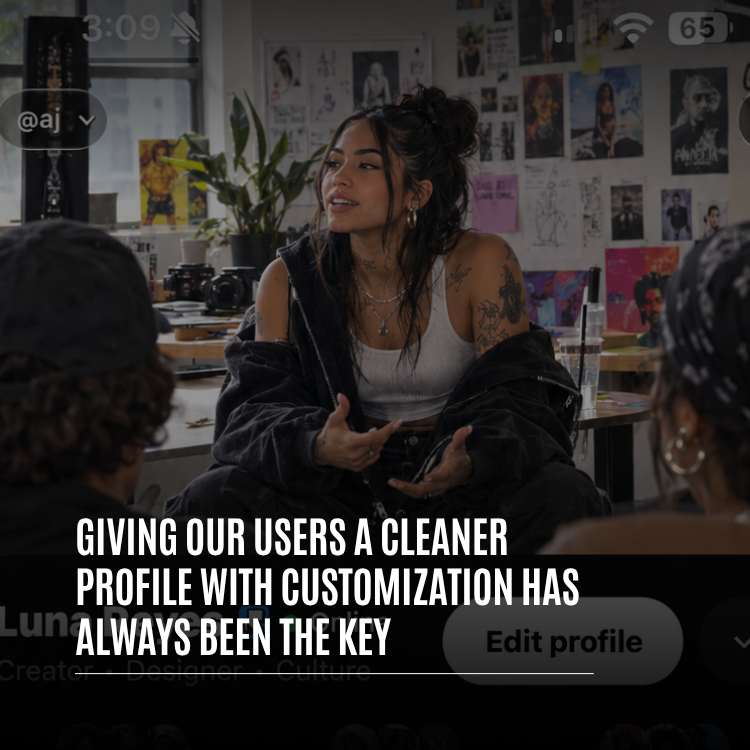
"I was honestly sad about losing my banner for about a day. Then I set my category to Illustrator, put a Halo on my Blip, and matched my song to my Mood, and my profile looks more like me than it ever did. People keep asking what my Halo is. Nobody ever asked about my banner."
— Luna, illustrator and designer on Whistlr
Whistlr Profile Limits at a Glance
Here are the limits you'll run into while customizing your profile, so you can plan your bio and details before you start typing.
- Display name: 1 to 50 characters.
- Username: At least 3 characters, using letters, numbers, and underscores.
- Bio: Up to 150 characters.
- Pronouns: Up to 30 characters.
- Links: Up to 3 websites.
- Blip: A looping video of up to 20 seconds.
- Category: One category, shown under your name.
- Top 8: Eight friends, featured on your profile.
- Accounts: Up to 4 accounts in the account switcher.
Privacy and Control Still Come First
A cleaner profile is only a better profile if you stay in control of what it reveals. Everything personal on the new profile is opt-in: if you don't set a category, song, Mood, relationship status, or Top 8, those sections simply don't appear.
If you want your posts to stay among people you know, turn on Private account in your privacy settings. When your account is private, only people you approve can see your posts and add you as a friend. You can also choose whether to show your activity status and last seen time, and whether your account appears in similar account suggestions. Your secret answer, used to help secure your account, is always set to Only me.
"Every element on the new profile only appears when you put it there. That's a design rule and a privacy rule at the same time. A profile can be expressive without exposing anything you didn't choose to share, and the controls to dial it back are always one screen away."
— John Ridge, CTO, ETAPX
Sharing Your Profile and Switching Accounts
Once your profile looks right, you'll want people to see it. Share profile, in the More profile options menu, opens a styled QR code that friends can scan, plus Share Profile and Copy Link buttons for sending it anywhere.
If you run more than one account, tap the @username pill at the top of your profile to open the account switcher. You can add up to four Whistlr accounts, jump between them in a tap, and manage them from Accounts Center. Each account keeps its own profile, so your personal page and your creative or business page can each look exactly the way they should.
How to Set Up Your New Whistlr Profile
Ready to make the most of the new layout? Here's a simple path from blank page to finished profile.
- Pick your picture. Tap Edit profile, then Edit picture, and choose a photo or record a Blip. Use the cropper to center your face.
- Add a Halo. Choose a frame that fits your style from the Halo options.
- Set your category. Pick the label that best describes you so it appears right under your name.
- Write your bio. Use your 150 characters to say what you do and what people can expect from your page.
- Add links and location. Add up to three links and your location so they appear together on one tidy line.
- Choose your song and Mood. Add music from the Banners row and set a Mood so they sit side by side on your profile.
- Pick your badges. Add your country flag and update your online badge if you'd like.
- Choose your tabs and Top 8. Turn the Top 8, Highlights, and Havens toggles on or off, and pick the friends who make your Top 8.
- Tap Save. Then visit your profile to see the result, and share it with a QR code or link.
Tips for a Profile That's Clean and Unmistakably You
- Let your category do the introducing: A clear category saves bio space for personality instead of job titles.
- Make your photo work harder: With no banner, your photo or Blip is the visual anchor of your page. Choose one where your face is clear at a small size.
- Keep your Blip short and loopable: The best Blips are a few seconds of motion that loop smoothly, like a wave, a laugh, or a turn toward the camera.
- Match your song to your Mood: They sit on the same row now, so a pairing that fits tells visitors a lot in a single glance.
- Pin a Note: A pinned Note at the top of your Notes tab is a great place for a longer introduction than your bio allows.
- Turn off tabs you don't use: Fewer tabs mean a cleaner page and a faster path to the content you care about.
- Refresh with the seasons: Update your Halo, Mood, and song every so often so returning visitors see something new.
- Choose your Top 8 thoughtfully: It's one of the most personal parts of your page, and people notice who's on it.
Frequently Asked Questions
Why did Whistlr remove the profile banner?
Whistlr removed the profile banner to put your name and photo at the top of your profile instead of a background image. Banners pushed personal details down the page and competed with your photo, Blip, and Halo. Your profile photo now acts as the backdrop when the header docks as people scroll.
How do I customize my Whistlr profile?
Tap Edit profile on your profile page. From there you can change your picture, Blip, and Halo, edit your name, username, pronouns, bio, and links, set your category, location, Mood, and profile song, add badges, and turn tabs like Top 8, Highlights, and Havens on or off. Customize profile opens a quick sheet for Halo, Blip, and badge changes.
What is the category under my name on Whistlr?
Your category is a single label, like Musician or Photographer, chosen from hundreds of options in Edit profile. It appears directly under your name and replaces your @handle in that line, so visitors immediately see what you're about. You can change or remove it any time.
How long can my Whistlr bio be?
Your Whistlr bio can be up to 150 characters. Your display name can be up to 50 characters, pronouns up to 30, and you can add up to three links.
What is a Blip on Whistlr?
A Blip is a short, looping profile video of up to 20 seconds that plays in place of a still profile picture. You can add one from Edit profile by tapping Edit picture and choosing Blip, then use the cropper to position it.
Can I hide tabs on my Whistlr profile?
Yes. You can turn the Highlights tab and Havens tab on or off in Edit profile, and verified business accounts can choose whether to show the Store tab. Some tabs, like Highlights and Waves, only appear when you have content for them.
How do I add my country flag to my Whistlr profile?
Open Edit profile and choose Country badge. It lets you show your country's flag beside your name on your profile. You can remove it any time from the same screen.
How many accounts can I switch between on Whistlr?
You can add up to four Whistlr accounts to the account switcher. Tap the @username pill at the top of your profile to switch accounts, add a new one, or open Accounts Center.
A clean profile tells people who you are. Customization makes sure the answer is actually you. The new Whistlr profile does both: your name, your photo, and your category up top, and a full set of tools in Edit profile to make every part of it your own. Open your profile, tap Edit profile, and make it yours.